Getting started with Site Security Checkup
Site Security Checkup helps you check the physical security of every place your office uses: the election office, a counting or storage room, each polling place or vote center, and each ballot drop box. You answer plain questions while you walk the site. Every No and Not sure goes on a fix-it list with who will fix it and by when. Then you plan your meeting with police and fire, and print a safety card for every poll worker.
Where your work goes.
Not signed in: nothing you make is kept in an Election Admin Suite account. It stays in the browser on your computer, and nothing you type or upload is sent anywhere. Clearing the browser erases it, so use Back up to keep a copy as a file. The top of the page says Not signed in · Stays on this device.
Signed in: it is saved in your office's suite account, in storage kept in the United States, where only people in your office can see it. The top of the page says Saved to your office's account.
Internet. Works offline: you need the internet to open it, and then you can keep working without it. Signed in, saving to your office’s account needs the internet. If the connection drops, keep the page open until it’s back, or use Back up.
This tool uses no AI. Help's Ask a question sends your question to Claude, Anthropic's AI, so leave out anyone's personal details. Press the words at the top of the page for these details any time, and see Privacy.
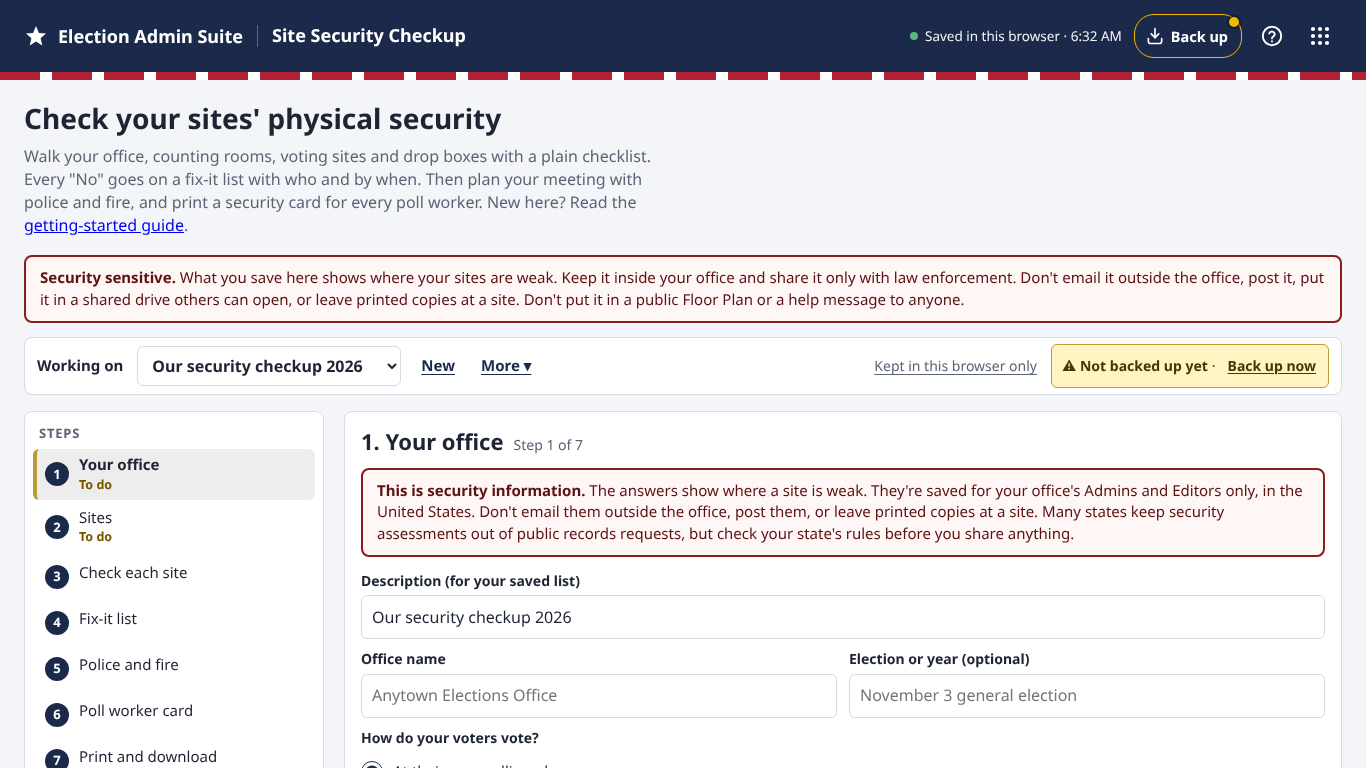
The top of the page is the same in every suite tool. On the left: your office's logo (or, before you sign in, the suite's star and name), a thin line, then the tool's name. On the right, always in this order: whether your work is saved, Back up (it opens the tool's backup, with a yellow dot when a backup is due and a red one after 30 days; in a narrow window it shows just its download icon), the ? Help button, your round badge (or Sign in if you aren't signed in), then the nine dots for your other suite tools. The tool's own buttons are in the page, under the header.
This is security information. Your answers, notes and photos show where a site is weak. The page says so in a red box at the top, and every printed page, the Word file and the spreadsheet say Security sensitive: for your office and law enforcement only. Keep it inside your office and share it only with law enforcement. Don't email it outside the office, post it, put it in a shared folder others can open, or leave printed copies at a site. Don't put security notes in a public Floor Plan or in a help message to anyone. Many states keep security assessments out of public records requests, but check your state's rules before you share anything.
1. Open Site Security Checkup
- In your web browser, go to sitecheck.electionadminsuite.com.
- The first time, it opens an empty checkup. Across the top is the Working on bar: its list is your saved checkups, New starts another, and More ▾ opens a card with Make a copy, Start the next checkup from this one and Delete, the only red button, which always asks first.
- On the left are the seven steps, numbered, and a box that counts your sites, how many you have checked and how many fixes are still open. To do under a step means something there still needs doing, and Fill these in lists what. Use Next: … at the bottom of each step, or press any step on the left. Everything saves by itself.
2. Your office and your sites
Your office. Give the checkup a description for your saved list, type your office's name and, if you like, the election or year. Then answer one question: How do your voters vote? At their own polling place, at any vote center, or by mail. The answer only changes the words: your in-person sites are called polling places, vote centers, or in-person voting sites. A note for whoever does the checkups is optional.
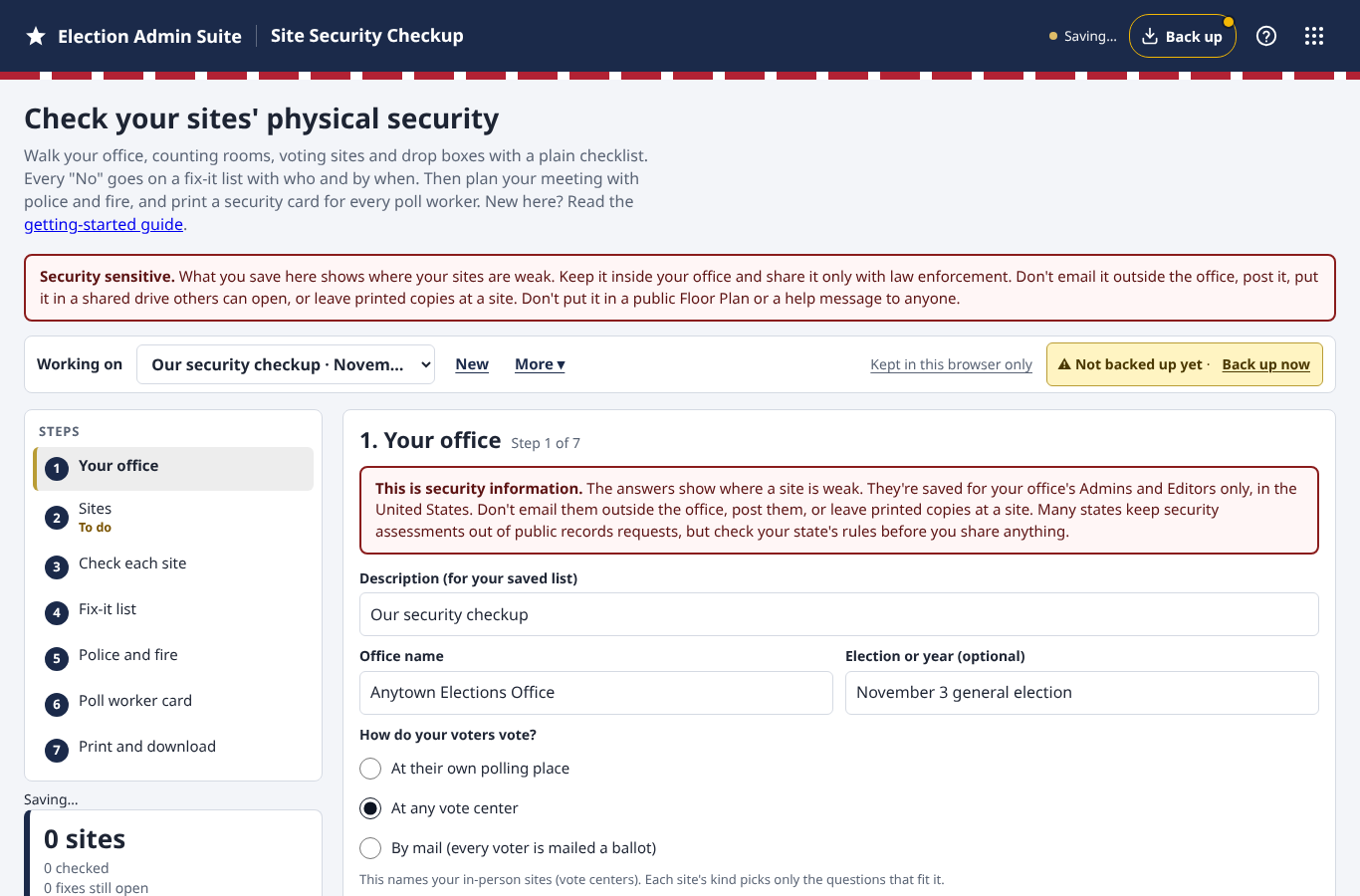
Sites. Add every place you want to check, each with its kind:
- Election office: the whole list of questions.
- Counting or storage room: where ballots or equipment are counted or kept.
- Polling place (or vote center, or in-person voting site): the questions that fit a building you borrow for a day or a few weeks.
- Ballot drop box: the box itself, its camera, its keys and the pickup.
Each site can have a lead and the lead's phone; these print on the page for police and fire. The same name twice is added once. Remove takes a site and its answers out, with Undo for a few seconds after. Signed in, Add … from your Places list brings in the names of the places on your office's Places list in your suite account. Only names come over, and only when you press it.
3. Check each site
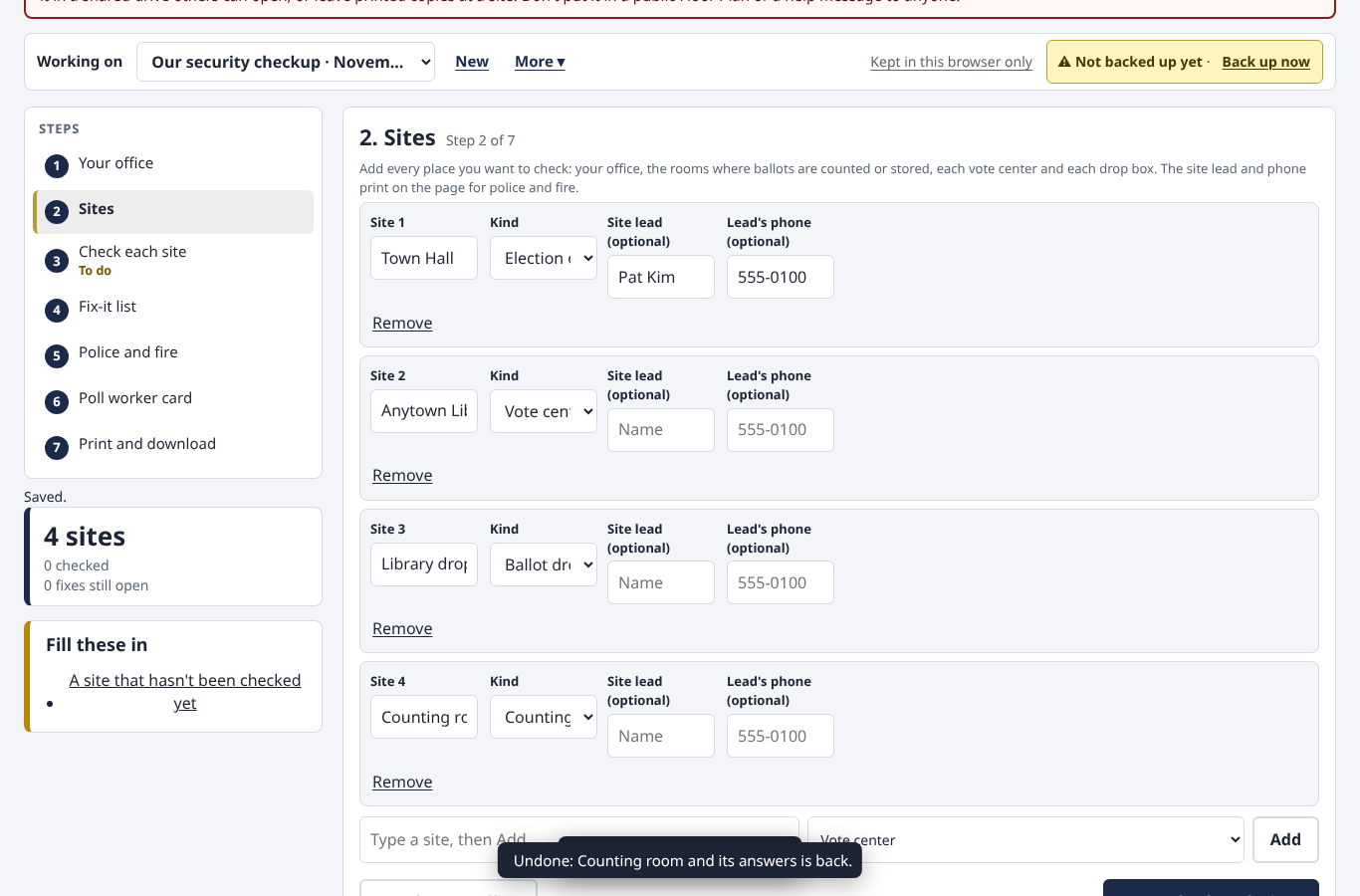
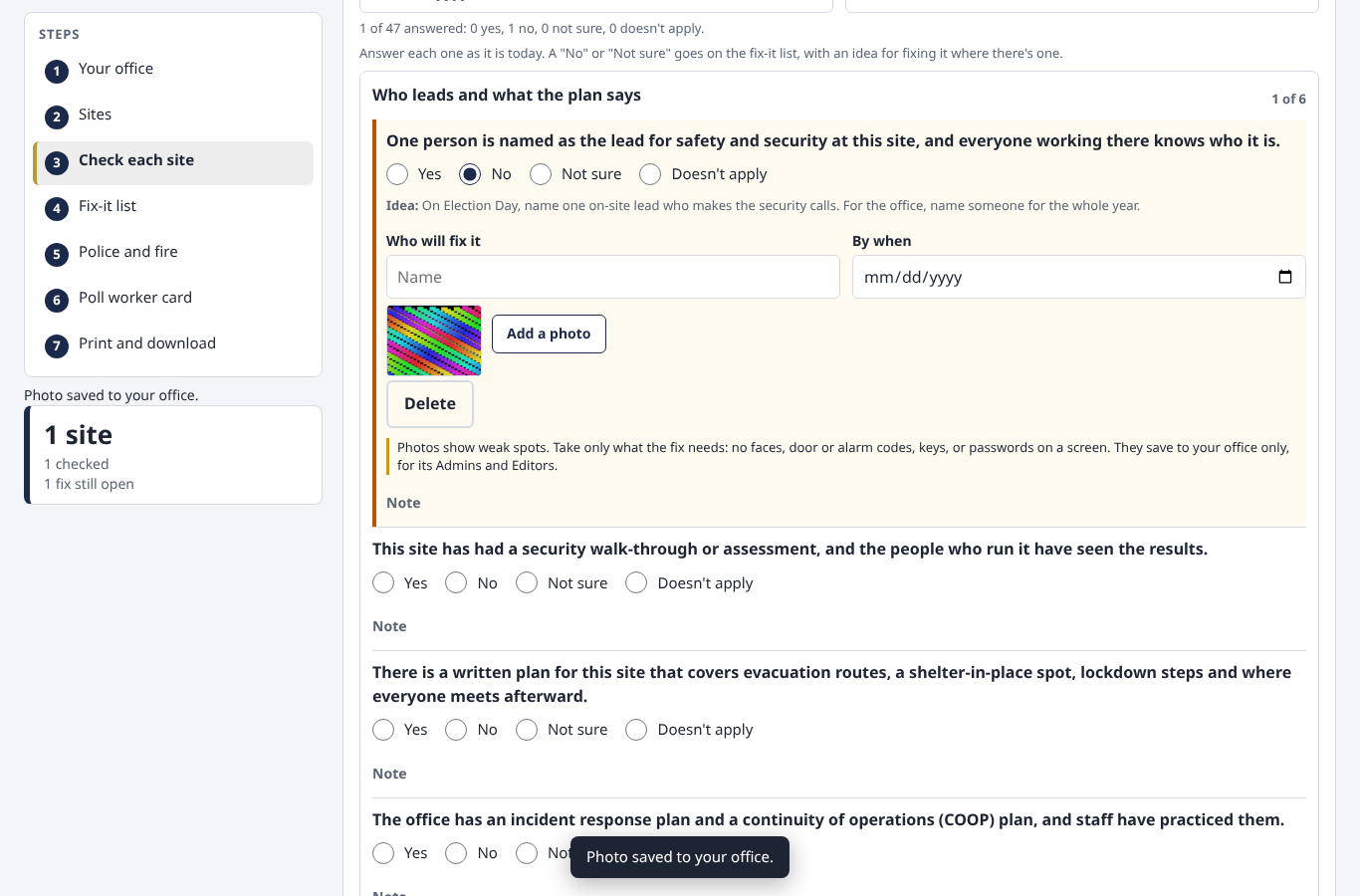
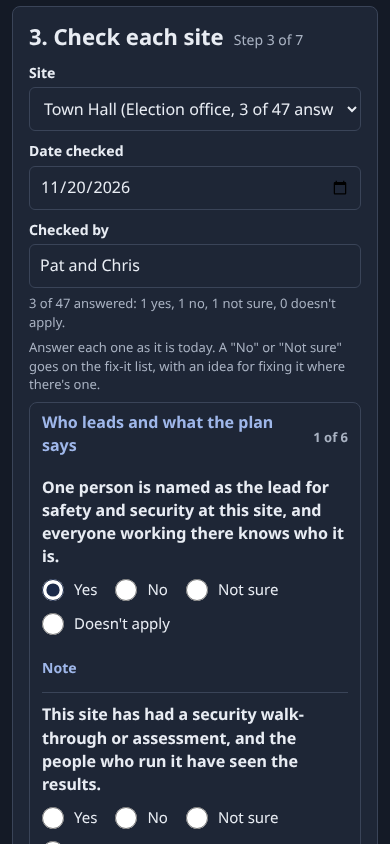
Pick a site at the top, then fill in the date and who walked it. The questions are in groups: Who leads and what the plan says, Outside and parking, Doors, keys and visitors, Inside the building, Ballots and equipment, The drop box, Emergencies, Police, fire and 9-1-1, and Training and reporting. A site sees only the questions that fit its kind: 47 for an election office, 38 for a counting or storage room, 24 for a polling place and 12 for a drop box.
- Answer each one as it is today: Yes, No, Not sure or Doesn't apply.
- A No or Not sure turns the question yellow and opens Who will fix it and By when, with an idea for fixing it where there's one.
- Note under any question holds what you saw, or where.
- The line above the questions counts the answers, and each group shows how many of its questions are answered.
The questions come from CISA's Physical Security Checklists for polling locations and for election offices, and from the topics in the Committee for Safe and Secure Elections' Security Assessment Checklist, in our own words. For a free expert visit, ask CISA for a Protective Security Advisor.
4. Photos (signed in)
A photo can help whoever fixes something: the broken lock, the dark corner of the parking lot. Under a No or Not sure, Add a photo takes one with a phone's camera or chooses one you already have.
- Photos are saved to your office only, never in the browser, so you need to be signed in to your suite account. Signed out, the page says so in place of the button.
- Take only what the fix needs. The line beside the button says it every time: no faces, no door or alarm codes, no keys, and no passwords on a screen.
- Before a photo leaves your device, the page makes it smaller (at most 1280 pixels across) and redraws it, which also takes out the phone's location and other details stored in the picture.
- Only your office's Admins and Editors can see photos. They never print, never go in the Word file and are never on a public page. A checkup holds up to 20 photos, and an office up to 300.
- Delete under a photo asks first, then deletes it for good. Deleting a checkup deletes its photos too.
5. The fix-it list
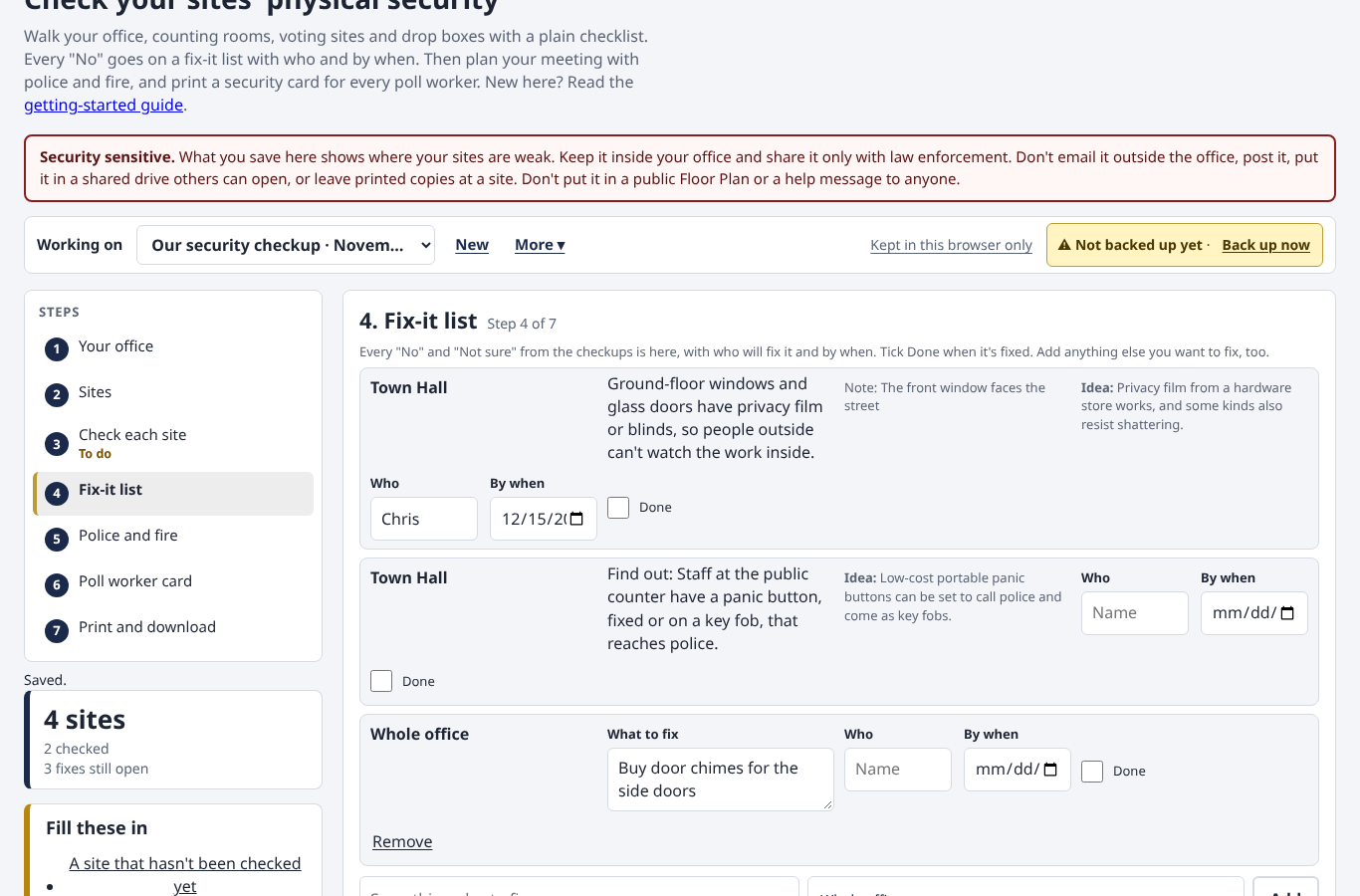
Every No and Not sure from every site is here, with the site's name, any note and the idea. A Not sure starts with Find out:. Fill in Who and By when here or on the question, and tick Done when it's fixed: it moves to the Done list below. Type anything else you want to fix in Something else to fix, pick where (or Whole office) and press Add.
6. Police and fire
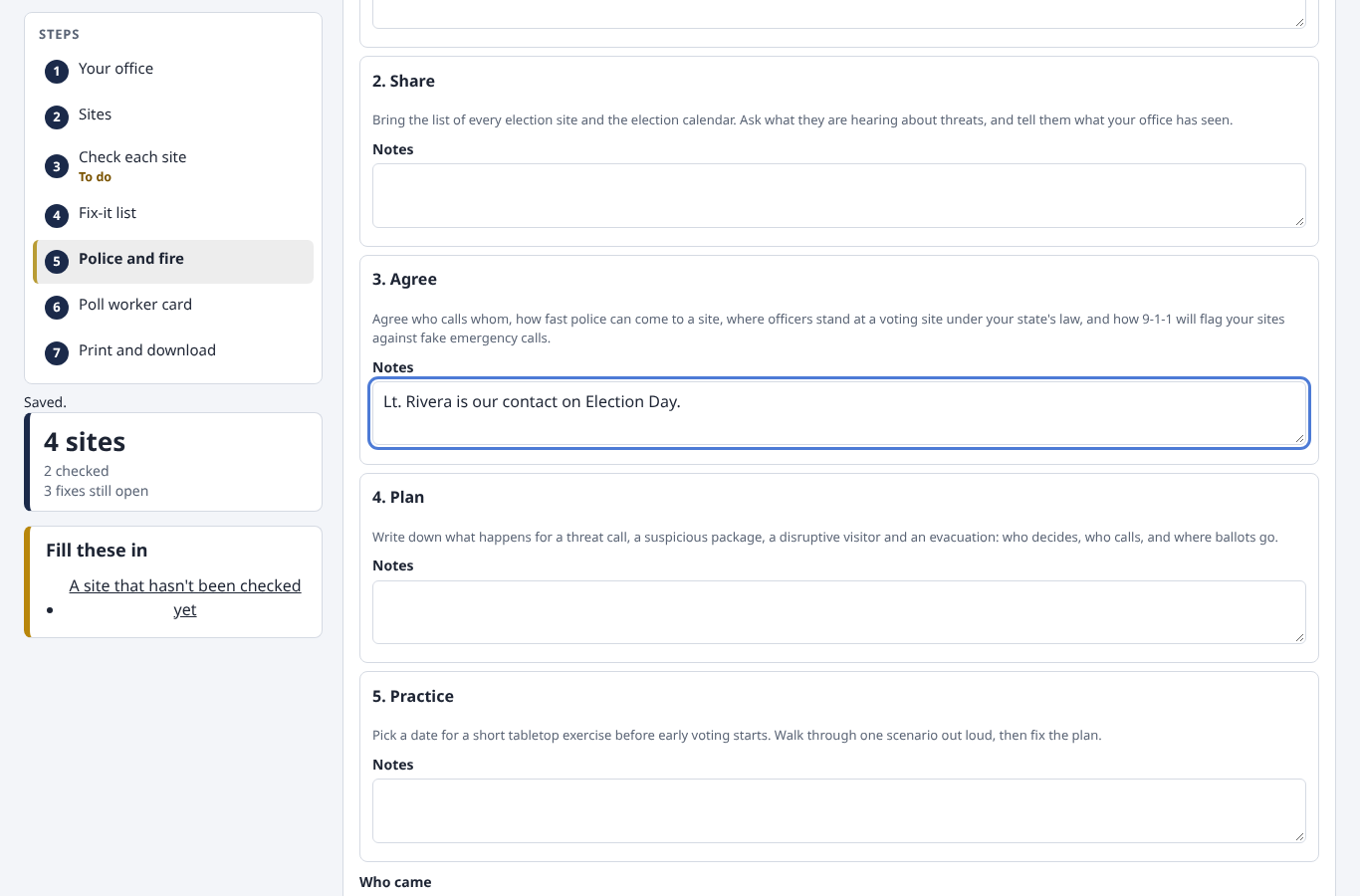
Meet with your local police and fire before each election. This step follows the Committee for Safe and Secure Elections' Five Steps: Meet, Share, Agree, Plan and Practice, each with what to cover and a box for your notes. Fill in the meeting date, where, the agencies coming and who came. Your state's election laws for officers are summed up in its Law Enforcement Quick Reference Guide.
7. The poll worker card
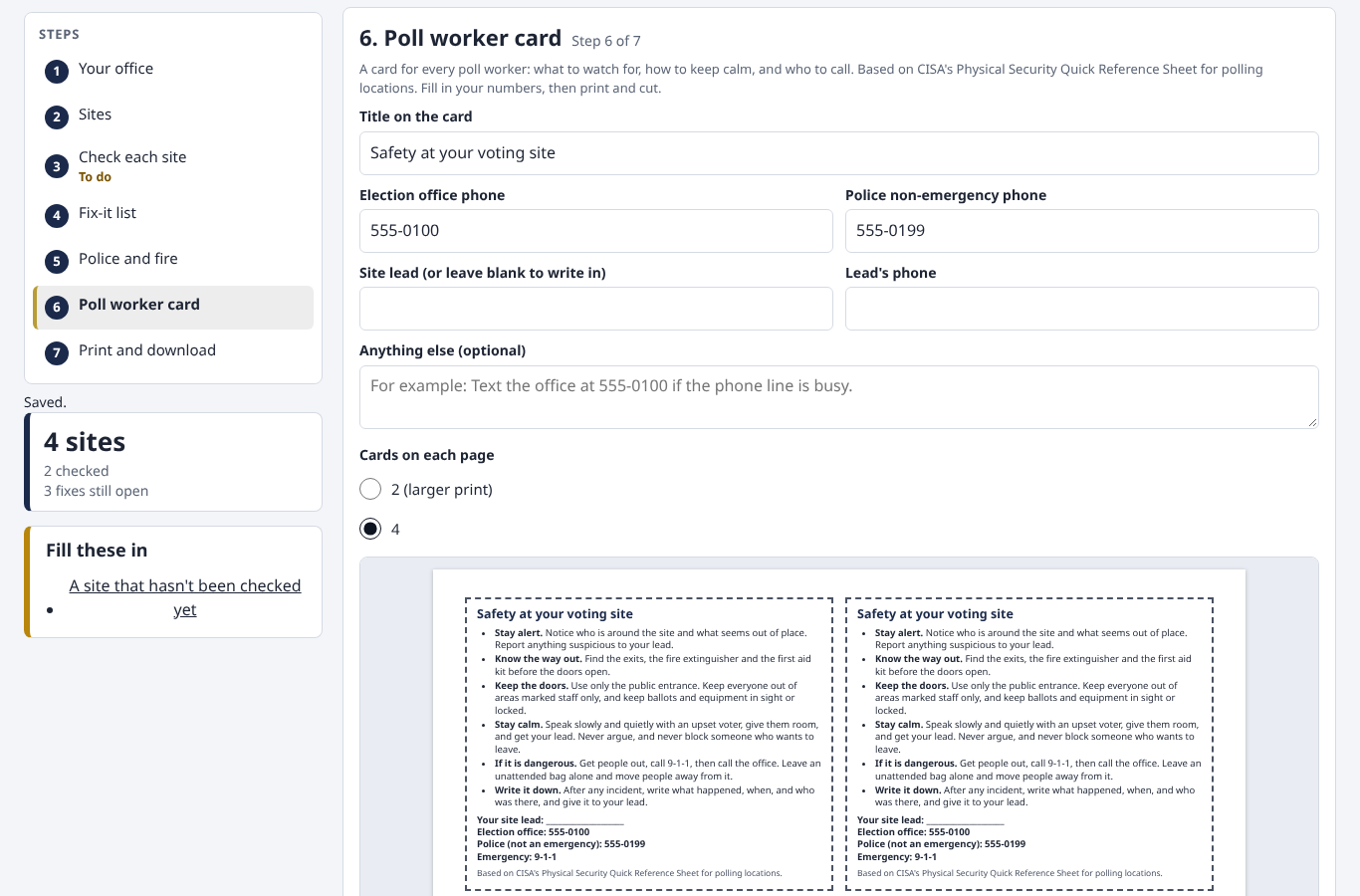
A card for every poll worker: what to watch for, how to keep calm, and who to call, based on CISA's Physical Security Quick Reference Sheet for polling locations. Fill in the election office's phone and the police non-emergency phone; leave the site lead blank to write it in by hand, or type one. Cards on each page: 2 (larger print) or 4. The card holds no answers from your checkup, so it is safe to hand out.
8. Print, the Word file and the spreadsheet
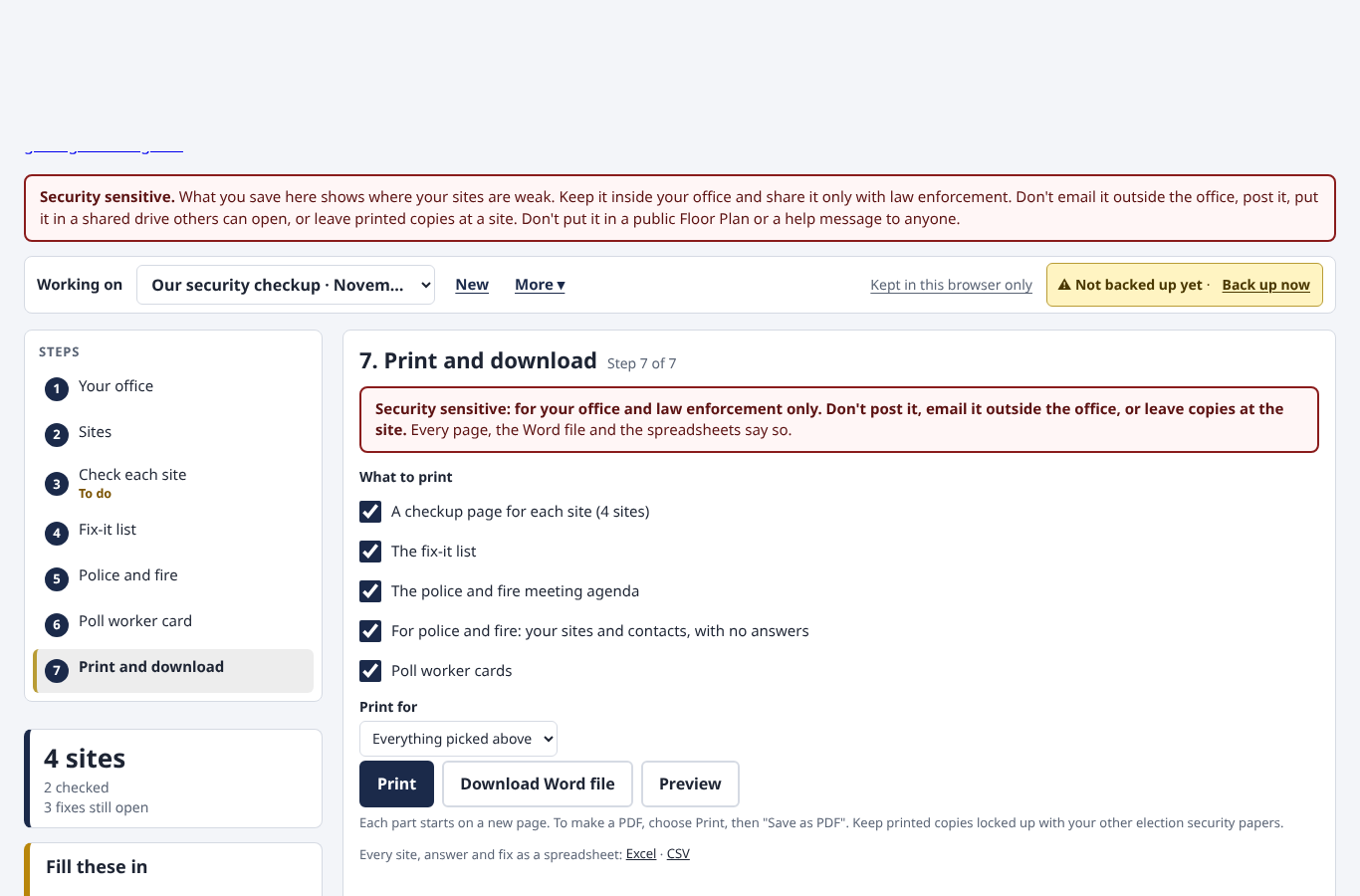
Print and download shows everything as it prints, each part starting on a new page. Under What to print, untick any part to leave it out:
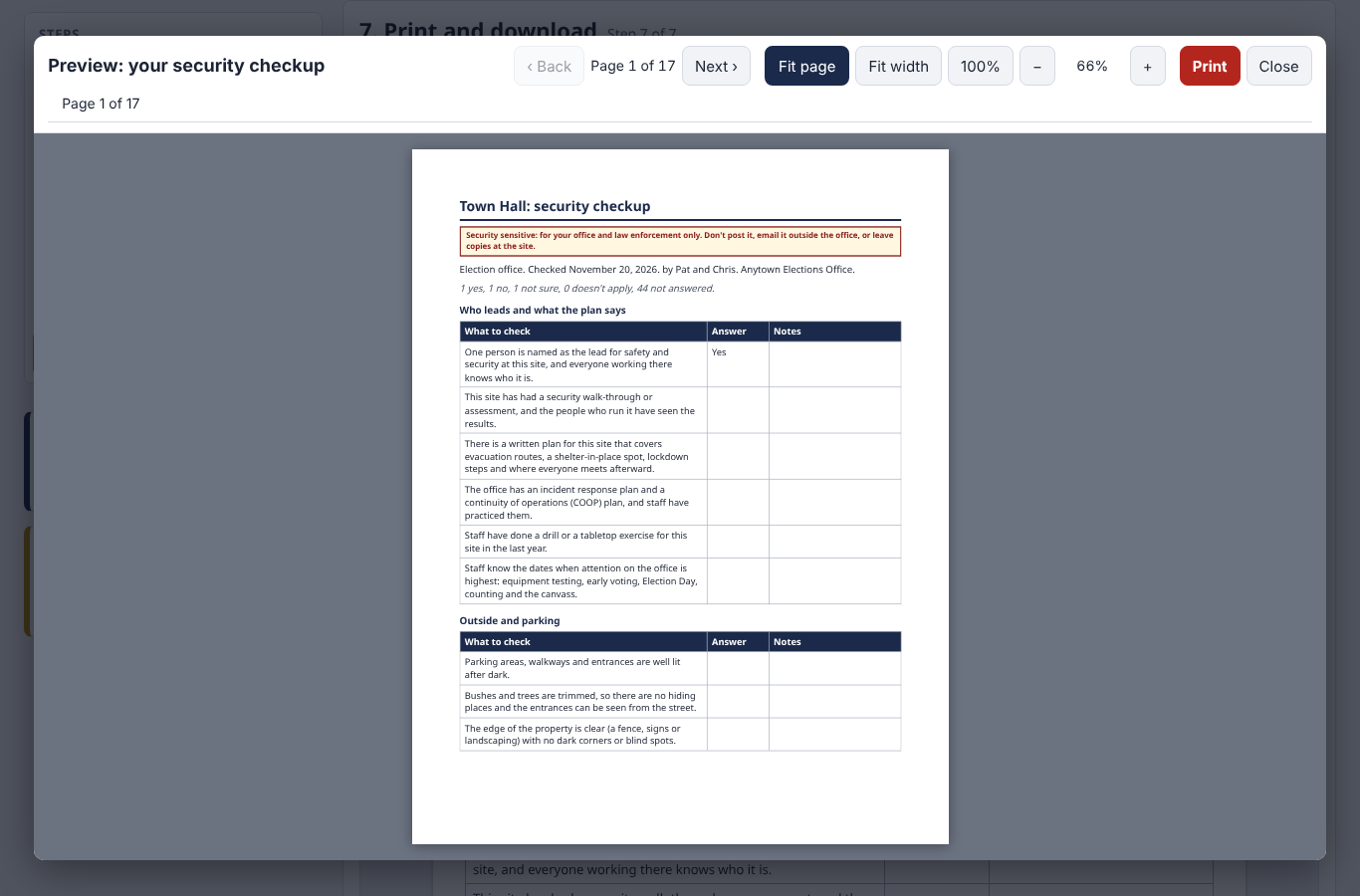
- A checkup page for each site: every question with its answer and note, who will fix it and by when, and lines for who checked it and the date.
- The fix-it list: every open fix, with who and by when.
- The police and fire meeting agenda: the five steps, with your notes.
- For police and fire: your sites, their kind, lead and phone, with no answers, so you can hand it over at the meeting.
- Poll worker cards, with "cut here" lines.
With more than one site, Print for picks one site. Every page carries the Security sensitive line under its heading.
- Print opens your printer's window. To make a PDF, choose Save as PDF as the printer. Keep printed copies locked up with your other election security papers.
- Download Word file saves the same pages to change in Word or Google Docs, with SECURITY SENSITIVE at the foot of every page. Signed in, it has your office's logo at the top, from its account's Office settings.
- Signed in, a line under the buttons says where that logo comes from: Your office's name, logo and colors come from Office settings in your suite account, so every suite tool matches. Its link, Change them in Office settings, opens your account's Office settings.
- Excel saves a spreadsheet with Read me first (the security line), Saved checkups, Sites, Answers and the Fix-it list, every field included. CSV saves one of those tabs. Every file name ends in SENSITIVE, so it's plain what it is wherever it ends up.
See it large. Click the pages under the buttons (they say Click to preview), or press Preview: they open page by page as they print. Back and Next turn the pages, 100% is the paper's real size, and Close or Esc closes it.
9. The next checkup, back up and restore
Start the next checkup from this one, in the More ▾ card, makes a copy with the same sites, leads, card and print choices, clears the answers, dates and meeting notes, and carries every open fix over as From the last checkup: …. Photos stay with the checkup they were taken for.
Press Back up at the top of the page for the Back up and restore panel: Download a backup, Restore from a backup…, the Last backup line and Remove my work from this browser. It is the same panel in every suite tool, with a yellow dot when a backup is due and a red one after 30 days. Signed in, the backup holds every checkup your office saved and its photos, and your office's activity in this tool.
A backup is security information too. Keep it on your office's own drive, not in a personal email or a shared folder others can open.
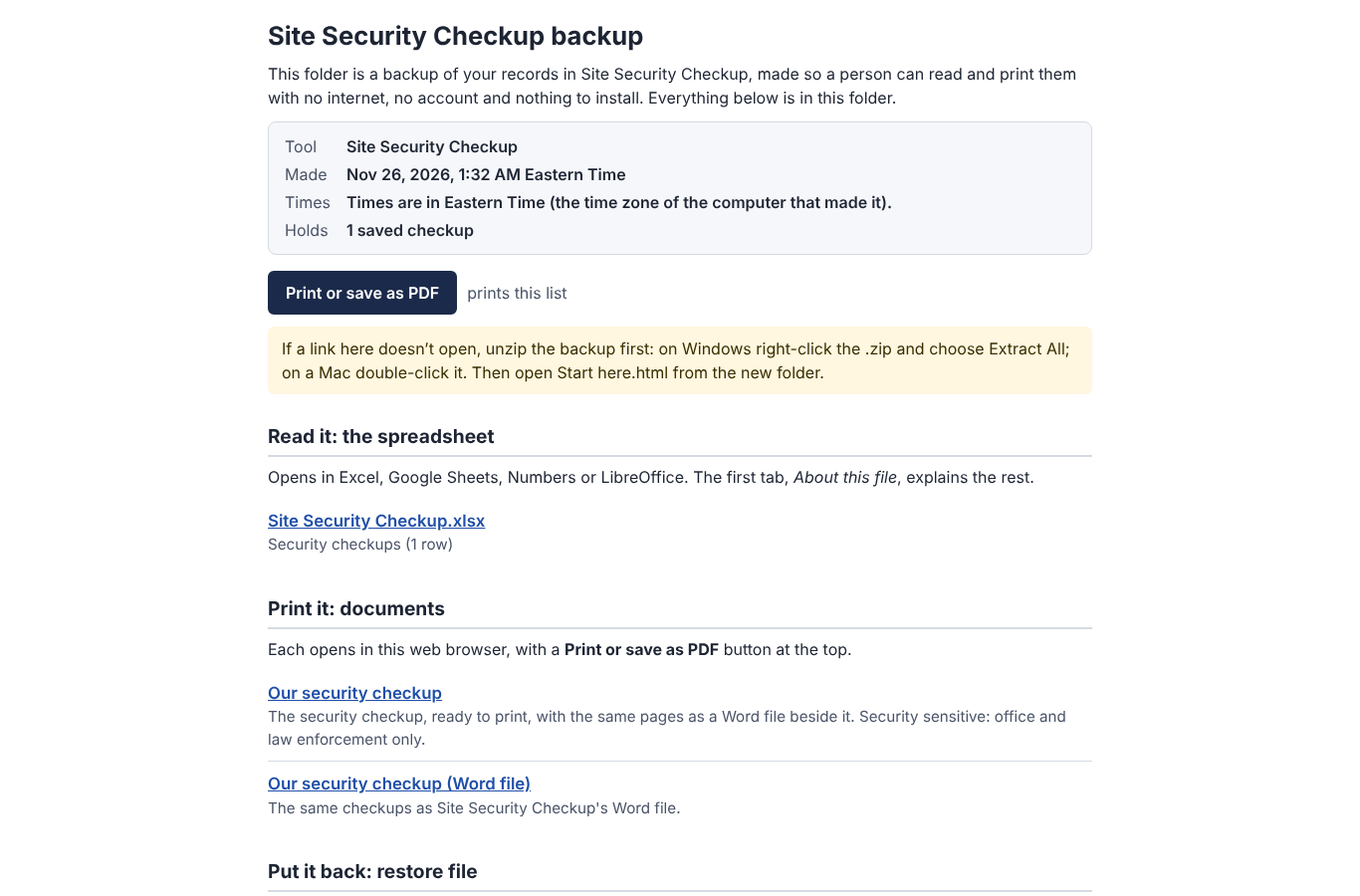
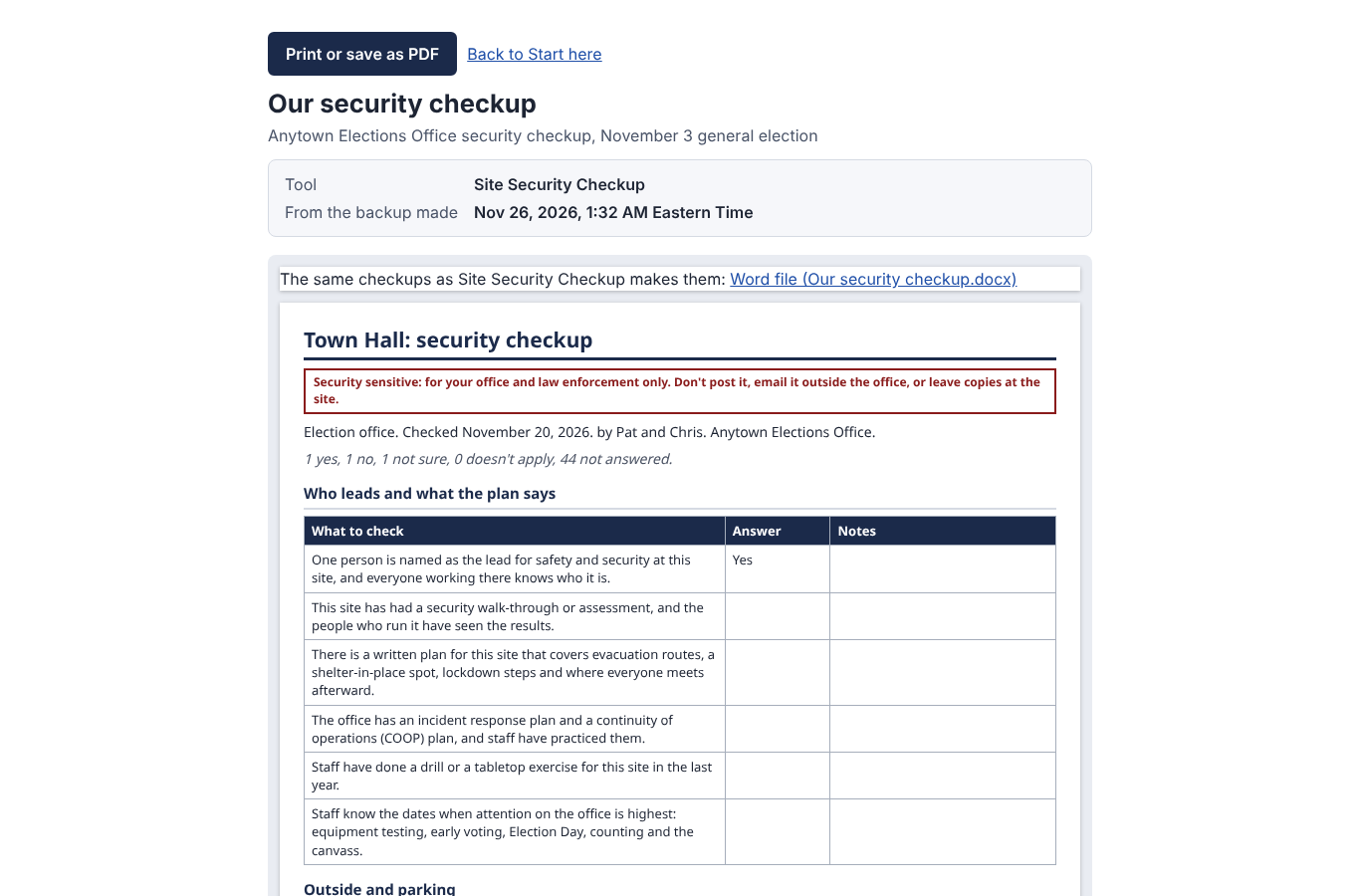
The backup is a folder you can open without the internet. Unzip it and double-click Start here.html. It lists Documents/ (each saved checkup as a print-ready page and as the Word file), Spreadsheets/ and Restore files/ (the file Site Security Checkup reads to restore; don't change it). The Backup Reader shows what's inside any backup file.
- Restore from a backup… loads a backup: the whole .zip, a Back up everything file, or the .json file from Restore files. A box asks Restore this backup? first; Replace with the backup replaces every checkup (and, signed in, every photo) with the backup's, and Keep what’s here changes nothing.
- A damaged file, or one that isn't a Site Security Checkup backup, is refused, and nothing changes.
- Remove my work from this browser clears what Site Security Checkup keeps in this web browser, for a shared or borrowed computer. It asks first. Signed in, your office's saved work isn't touched.
If your office closes. For 30 days after an office is closed, its Admins and Editors can still open Site Security Checkup and look, but nothing can be changed. Admins can still download a backup. After that, your office's saved checkups and photos are deleted (how and when).
10. Signing in and who can see it
Signed in to a free Election Admin Suite account, your checkups are saved for your office, so the people who do the work can use them on any computer, and you can add photos. If you made checkups in this browser before signing in, a box asks whether to copy them to your office; nothing moves unless you choose.
Admins and Editors only. The answers, notes, fix-it list and photos are for your office's Admins and Editors. Someone with the View and print role (roles) sees only the names of your saved checkups: the page tells them to ask an Admin or Editor, and the server refuses them too. Only Admins back up and restore.
11. Getting help
- The Help button is the question mark at the top right, beside the 9 dots: Contact us sends us a question by email, Suite status shows whether every tool is working, and What's new lists this tool's changes from the last 60 days.
- Help's Ask a question answers from this guide. Don't put your answers, notes or anything about a site's weak spots in a question.
- Site Security Checkup doesn't count visits.
- Your account, if you have one: the account guide.
Report a problem
In Help, Report a problem tells the suite team about something that went wrong. Type what you were trying to do and what happened. The tool adds what we need to look into it, and What we add for you shows you the whole list before you send: the tool and its version, the page's address (without anything after ? or #), your browser and screen size, whether you're signed in and to which office, and any errors the page hit.
In Site Security Checkup, Report a problem takes words only. Taking a picture of the screen, choosing a picture and recording the screen are off here, because these pages show where your sites are weak, and the suite refuses a picture or recording sent from this tool. Tell us in words what you see, and leave out the answers and notes themselves.
Nothing is sent until you press Send report. Only the suite team sees reports. They're kept in the US and deleted after 30 days. Signed in, we reply to the email you signed in with; signed out, add your email if you'd like an answer. If something on the page breaks, the page also tells the suite team on its own what broke (the error, the page and your browser), never what you typed.