Getting started with Ballot Order Estimator
Ballot Order Estimator helps you work out how many ballots to order for each polling place, vote center or ballot style. It reads your own past elections, picks the ones like this election, adds your safety margin and rounds up to how your ballots come packed (25, 50, 100 or your own size). During early voting it keeps count of the ballots used and spoiled at each site and tells you whether they will last to the end. Every number comes with the reason for it, so you can check it.
Where your work goes.
Not signed in: nothing you make is kept in an Election Admin Suite account. It stays in the browser on your computer, and nothing you type or upload is sent anywhere. Clearing the browser erases it, so use Back up to keep a copy as a file. The top of the page says Not signed in · Stays on this device.
Signed in: it is saved in your office's suite account, in storage kept in the United States, where only people in your office can see it. The top of the page says Saved to your office's account.
Internet. Works offline: you need the internet to open it, and then you can keep working without it. Signed in, saving to your office’s account needs the internet. If the connection drops, keep the page open until it’s back, or use Back up.
This tool uses no AI. Help's Ask a question sends your question to Claude, Anthropic's AI, so leave out anyone's personal details. Press the words at the top of the page for these details any time, and see Privacy.
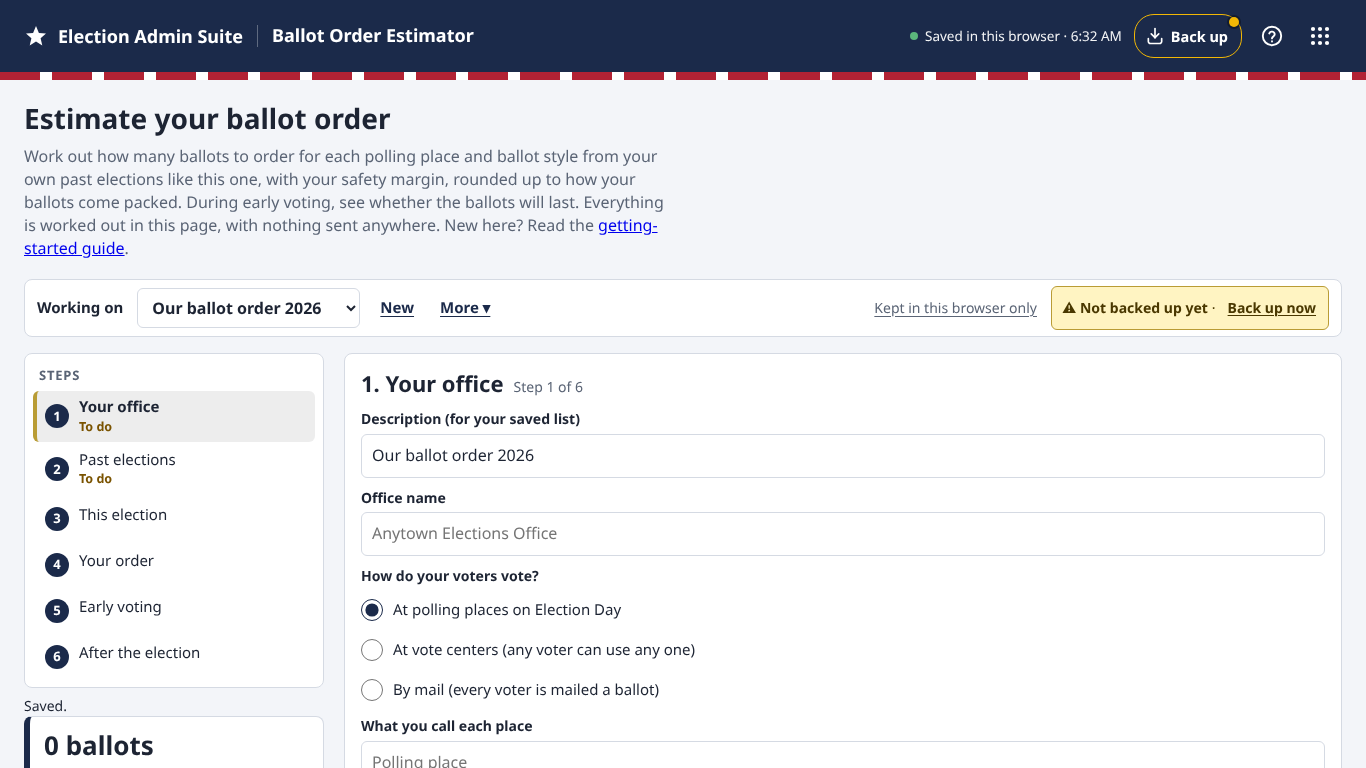
The top of the page is the same in every suite tool. On the left: your office's logo (or, before you sign in, the suite's star and name), a thin line, then the tool's name. On the right, always in this order: whether your work is saved, Back up (it opens the tool's backup, with a yellow dot when a backup is due and a red one after 30 days; in a narrow window it shows just its download icon), the ? Help button, your round badge (or Sign in if you aren't signed in), then the nine dots for your other suite tools. The tool's own buttons are in the page, under the header.
An estimate is a guide, not your state's rule. Many states set how many ballots you must have, for example a share of registered or enrolled voters. Ballot Order Estimator doesn't know your state's rule. Check the order against it, and use Never order less than this percent of voters (section 2) if your state sets one.
1. Open Ballot Order Estimator
- In your web browser, go to ballotorder.electionadminsuite.com. You don't need to sign in.
- The first time, it opens an empty estimate. Just trying it out? Open the Anytown sample, on the first step, opens a second estimate with made-up past elections and an order ready to look at; your own estimate is untouched.
- Across the top is the Working on bar: its list is your saved estimates, New starts another (with the same office settings and past elections), and More ▾ opens a card headed Your saved estimates with Make a copy, Start the next election from this one and Delete, the only red button, which always asks first. Not signed in, Kept in this browser only at its right opens the note on where your estimates are kept; when a backup is due, a gold box there says Not backed up yet · Back up now.
- On the left are the six steps, numbered, and a box with the ballots to order, the packs and how many past elections you have. To do under a step means something there still needs filling in, and Fill these in lists what. Use Next: … at the bottom of each step, ‹ Back: …, or press any step on the left. Everything saves by itself.
2. Your office: how voters vote, the pack size and your margin
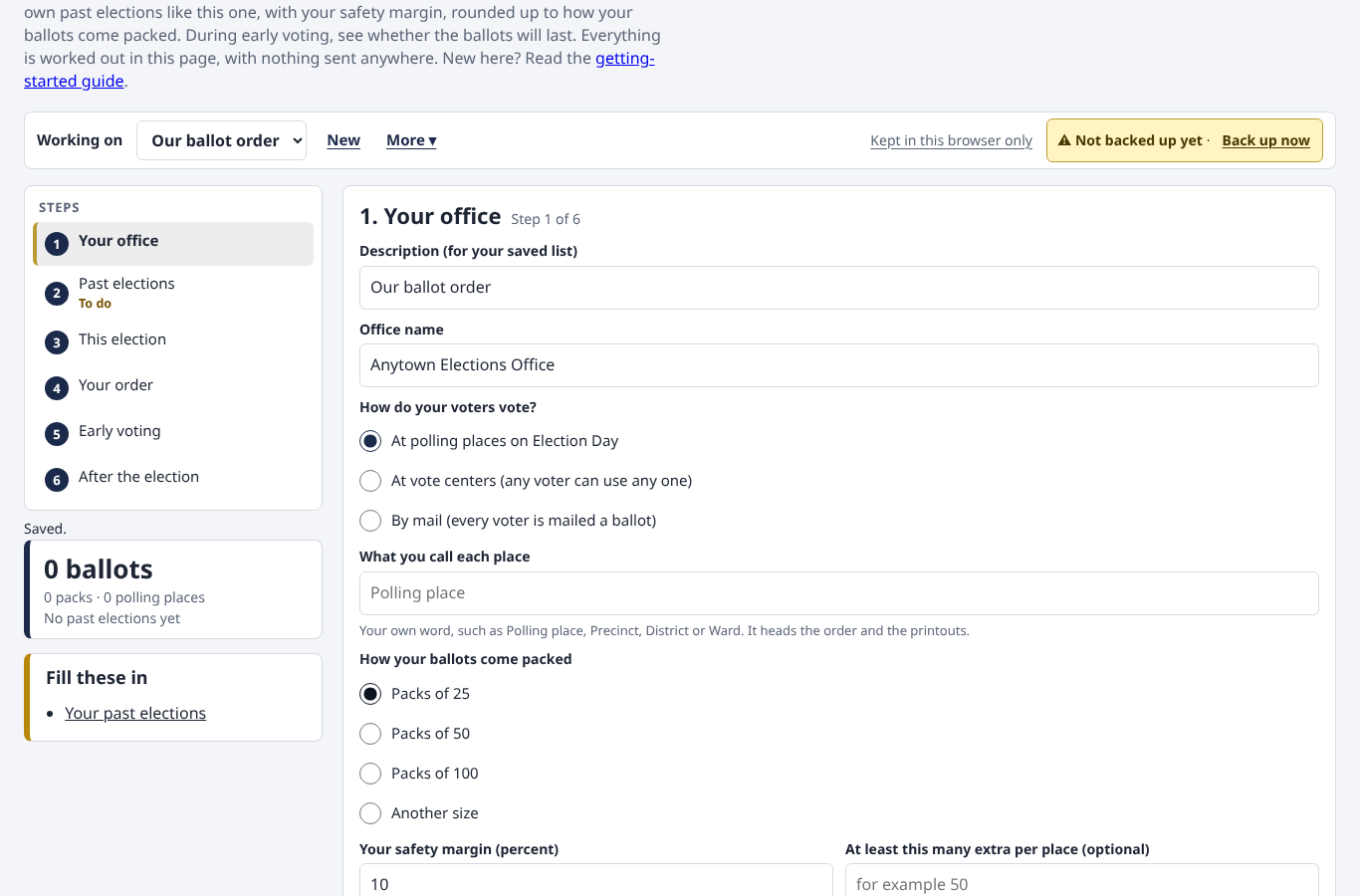
- Office name goes at the top of the printed order.
- How do your voters vote? At polling places, at vote centers, or all by mail. It sets the words (polling place, vote center or area) and, for all by mail, how the order is worked out: every voter gets a ballot, so the order is each area's voters plus your margin as a reserve for replacements.
- What you call each place is your own word, such as Polling place, Precinct, District or Ward. It heads the tables and the printout.
- How your ballots come packed: packs of 25, 50 or 100, or Another size. Every place's order is rounded up to whole packs.
- Your safety margin is a percent added on top of the expected turnout. Leave it empty for none. At least this many extra per place is optional: a small place still gets at least that many spare ballots.
- More choices holds Never order less than this percent of voters, for a minimum your state sets, and the cost of one ballot, which shows what the order and the margin cost.
- A note on the printed order is optional, such as when the order is due at the printer.
3. Past elections
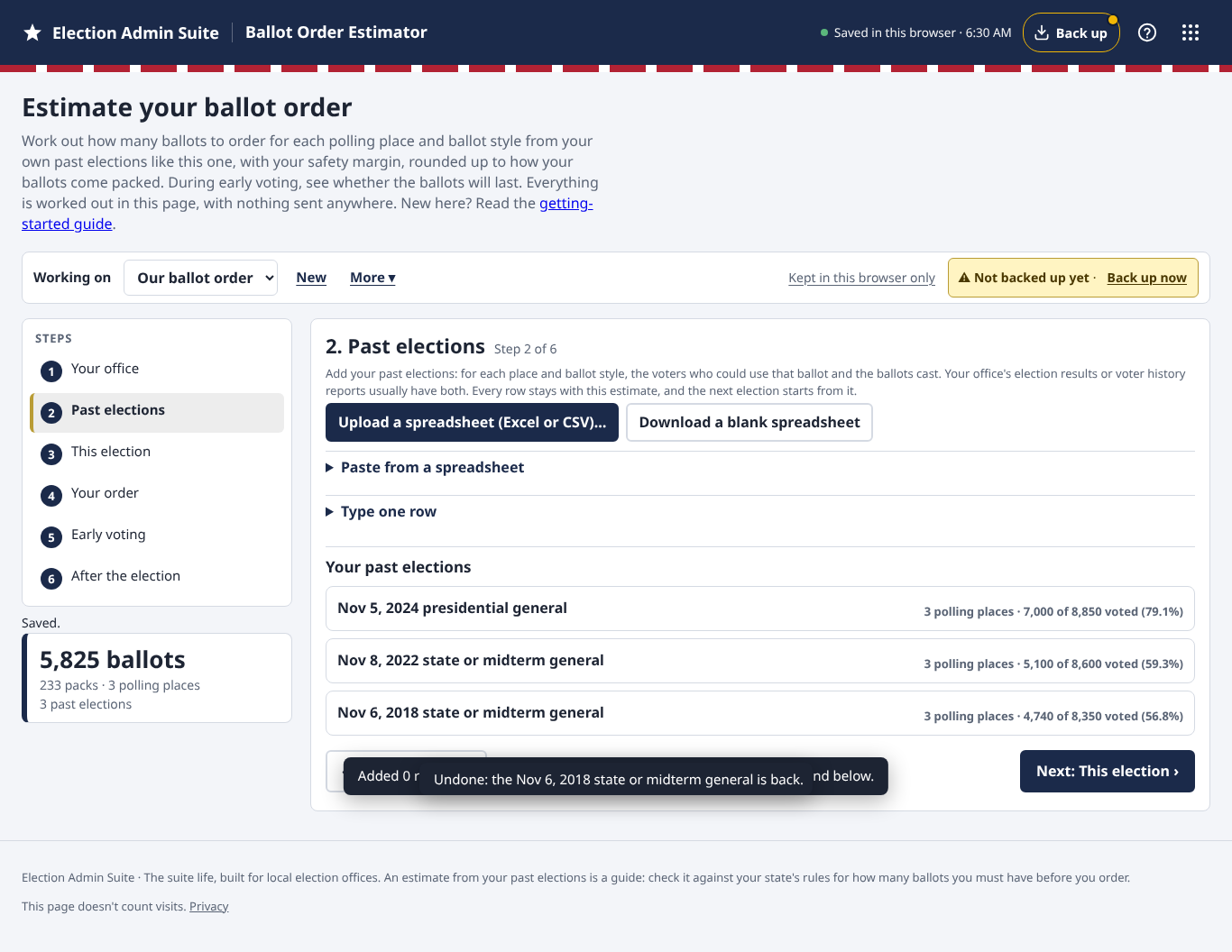
The estimate learns from your own past elections. For each past election you need, for each place (and each ballot style, if you have more than one): the voters who could use that ballot (registered voters, or the party's enrolled voters for a closed primary) and the ballots cast. Your election results or voter history reports usually have both.
- Upload a spreadsheet (Excel or CSV)… reads a file with one row for each place in each past election. Download a blank spreadsheet gives you one with the right headings to fill in.
- Paste from a spreadsheet: copy the rows with their headings in Excel or Google Sheets and paste them.
- Type one row adds a single row by hand.
After an upload or a paste, Check the columns shows which column holds each thing, guessed from the headings. Change any guess, then press Add … rows. If no column says what kind each election was, a November date is read as presidential, state or municipal by its year, and a primary by its party column. Reading the same file twice doesn't count it twice.
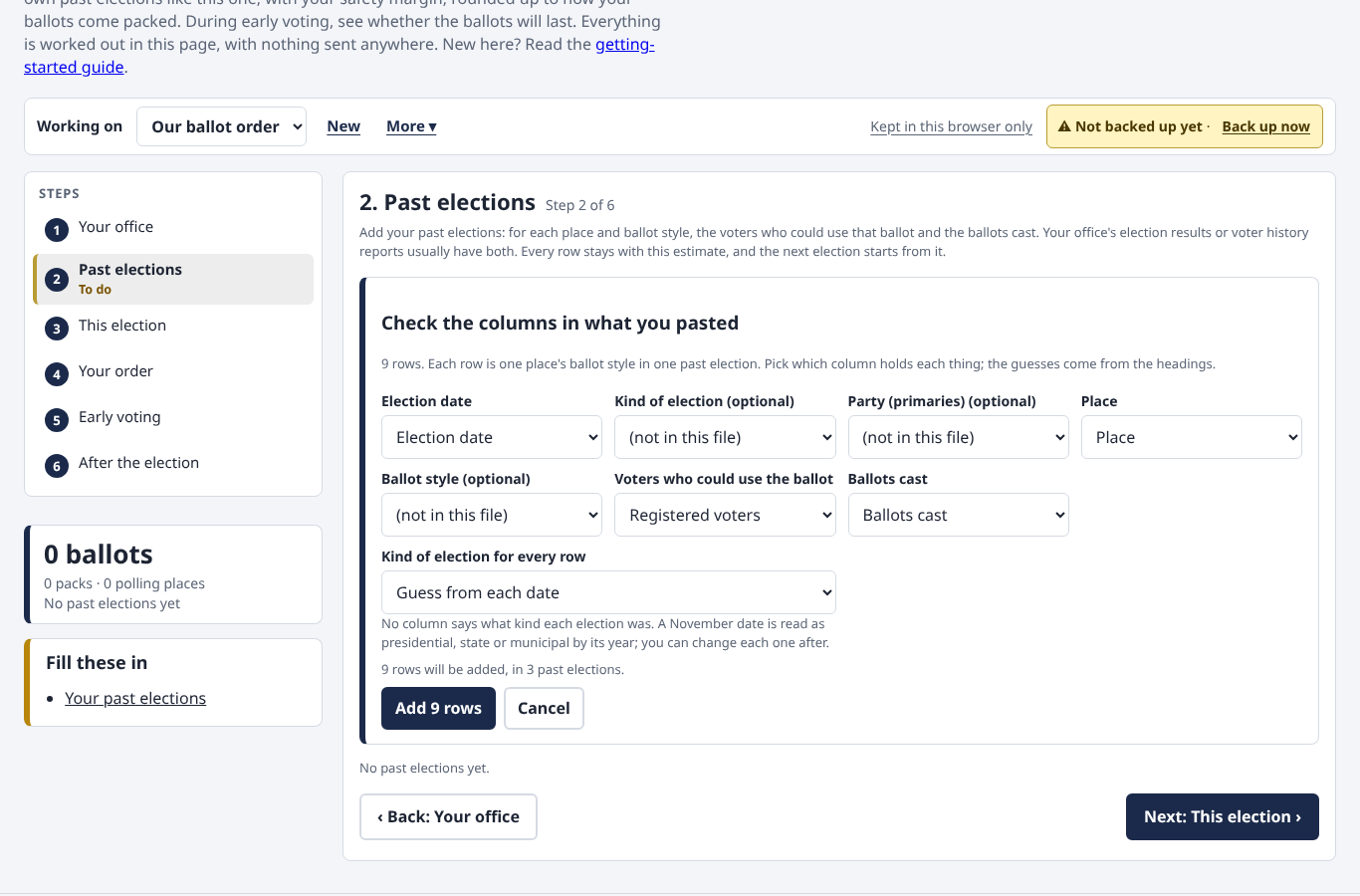
Under Your past elections, each election shows its turnout. Open one to change its kind (or the party for a primary), see and change its rows, or Remove it, with Undo for a few seconds after.
4. This election: like elections and today's voters
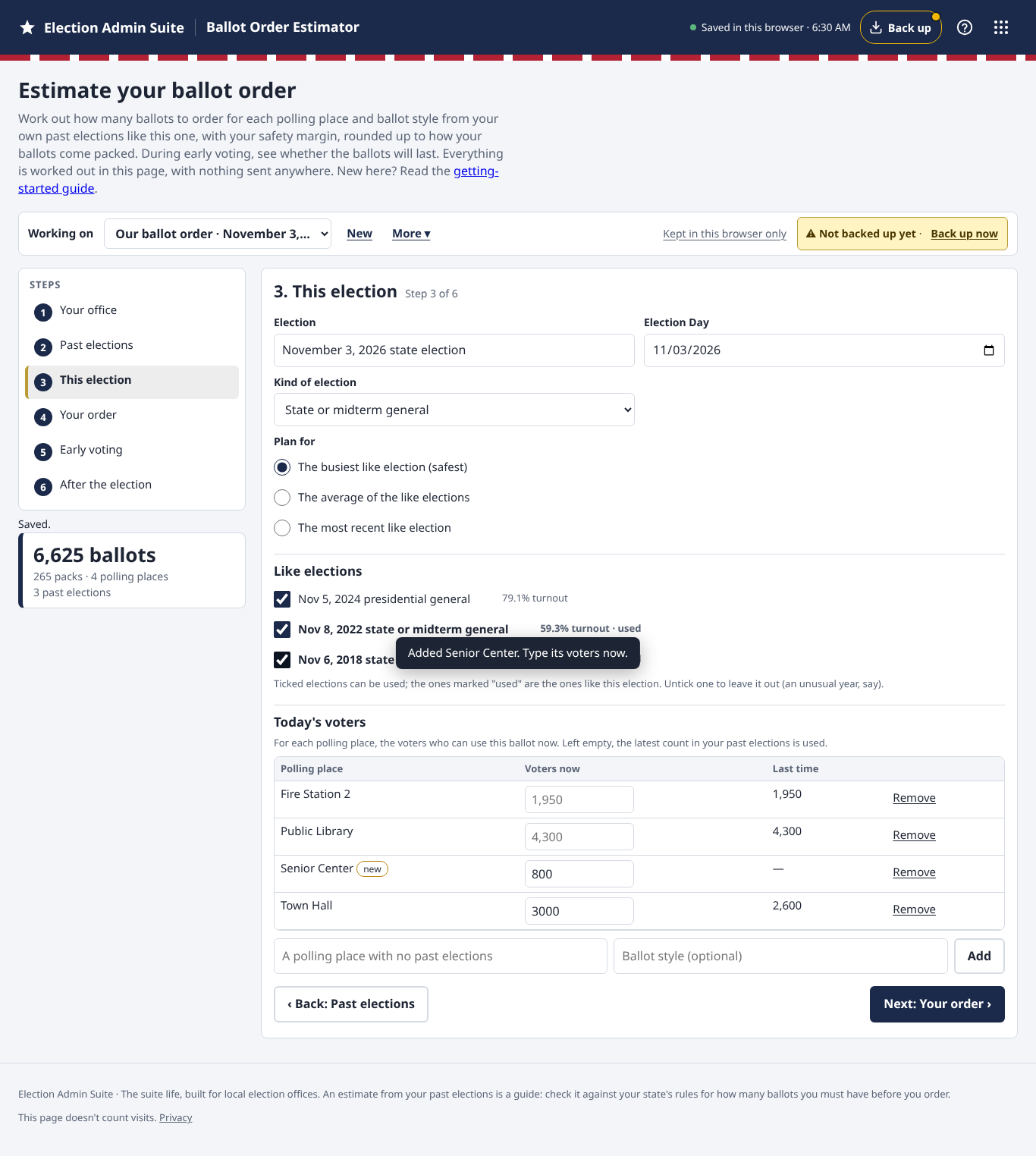
- Type the election and its date, and pick its kind: presidential, state or midterm, municipal or local, primary, special, or referendum. For a primary, type the party, or leave it empty to plan from every party's primaries.
- Plan for: the busiest of the like elections (the safest, and the starting choice), their average, or the most recent.
- Like elections lists every past election, with the ones used marked used: past elections of the same kind (for a primary, the same party). With fewer than two, the closest kind is borrowed, and a note says which. Untick an election to leave it out, such as an unusual year.
- Today's voters: for each place, the voters who can use this ballot now. Left empty, the latest count from your past elections is used (it shows in grey).
- A new place with no past elections: type it and press Add. It uses the turnout of the whole office. Remove takes a place off the order, with Undo. Signed in, Add … from your Places list offers the places on your office's Places list that aren't on the order yet.
- With more than one ballot style, A different pack size for a ballot style lets one style come in other packs.
5. Your order: print, the Word file and the spreadsheet
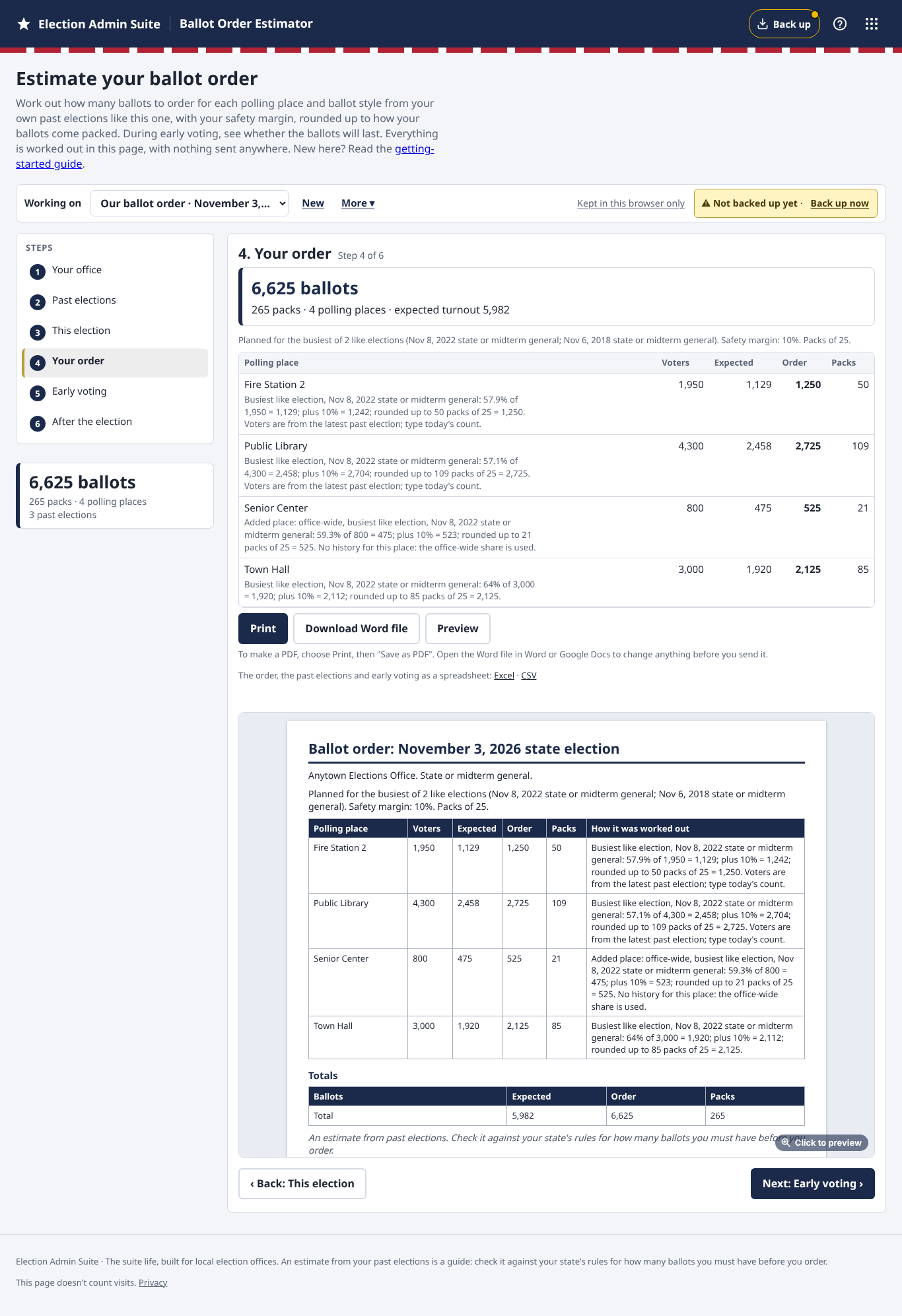
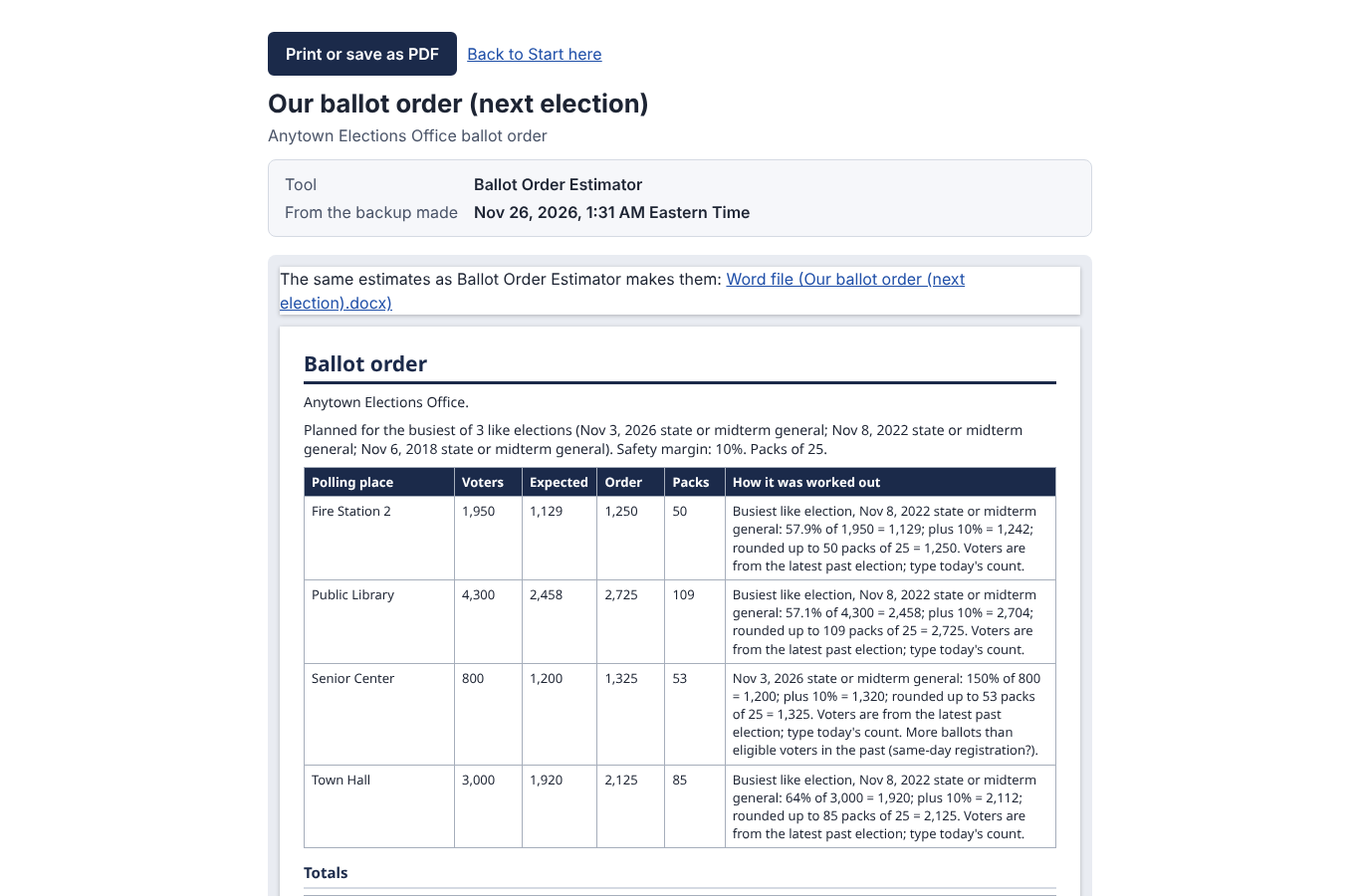
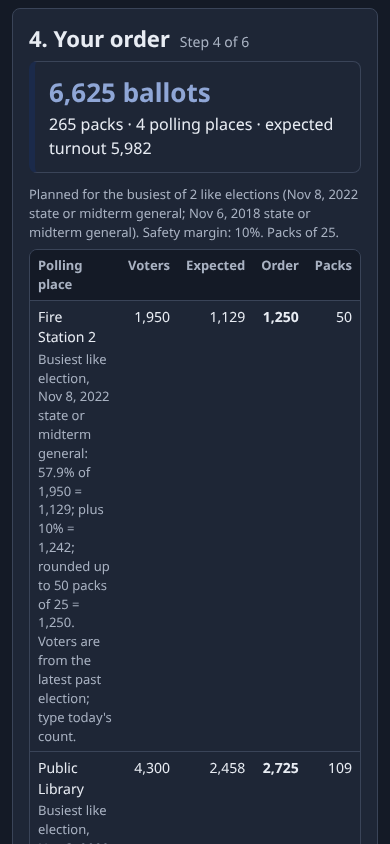
At the top, the ballots to order, the packs, the places and the expected turnout (and the cost, if you typed one). The table has each place's voters, expected turnout, order and packs, and under each place how it was worked out, for example Busiest like election, Nov 8, 2022 state or midterm general: 64% of 3,000 = 1,920; plus 10% = 2,112; rounded up to 85 packs of 25 = 2,125. A note flags a place whose voters changed a lot since last time, or where turnout ran over 100%.
- Print opens your printer's window. To make a PDF, choose Save as PDF as the printer.
- Download Word file saves the same order to change in Word or Google Docs. Signed in, it has your office's logo at the top.
- Signed in, a line under the buttons says where that logo comes from: Your office's name, logo and colors come from Office settings in your suite account, so every suite tool matches. Its link, Change them in Office settings, opens your account's Office settings. Signed out, the line isn't there.
- Excel saves a spreadsheet with five tabs, for every saved estimate: Saved estimates (every setting), Order, Past elections, Early voting and Ballots used. CSV saves one of those tabs, picked beside the link.
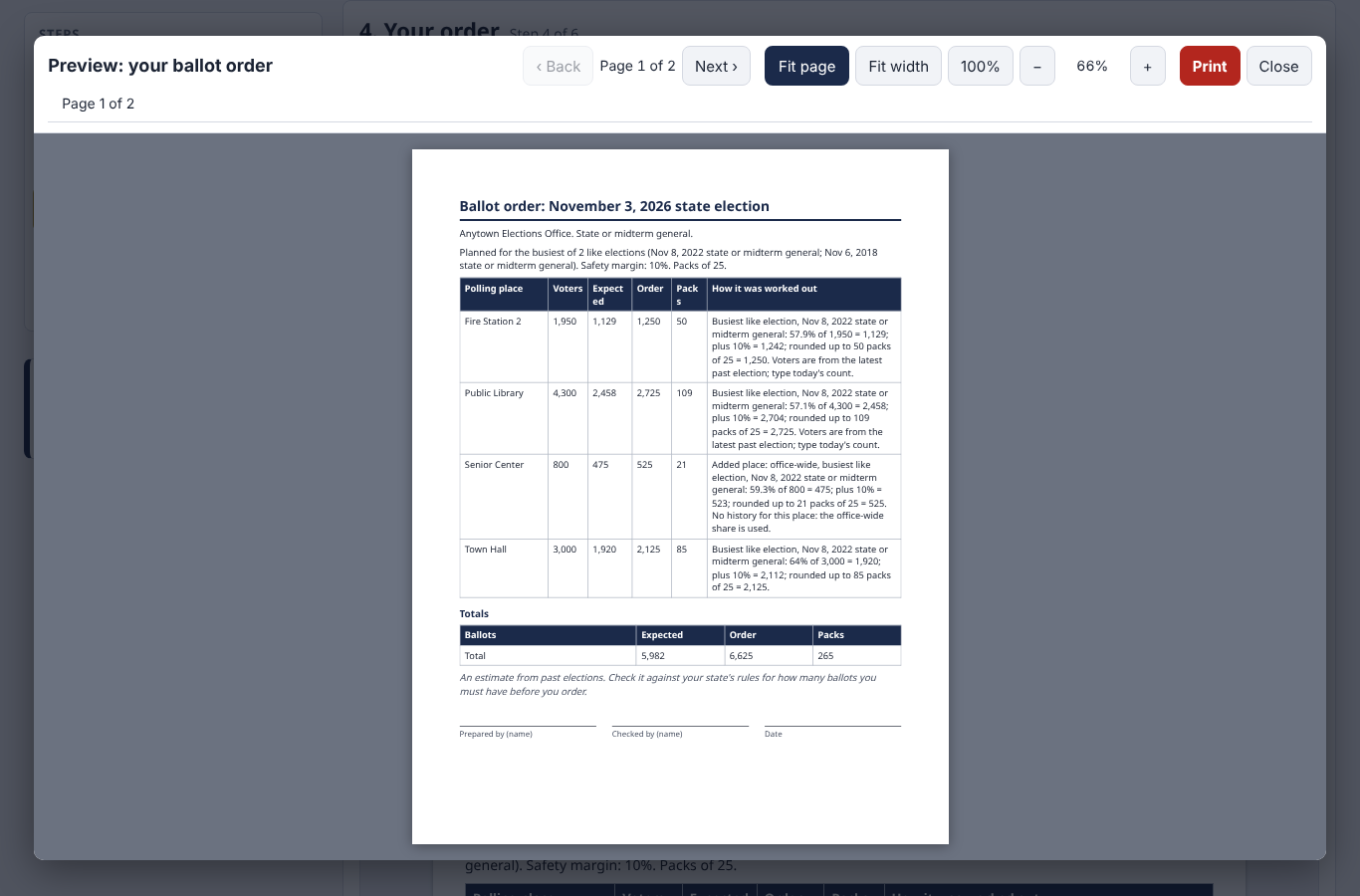
See it large. The order under the buttons says Click to preview in its corner. Click it, or press Preview, and it opens page by page as it prints. Close, the Esc key or a click outside closes it.
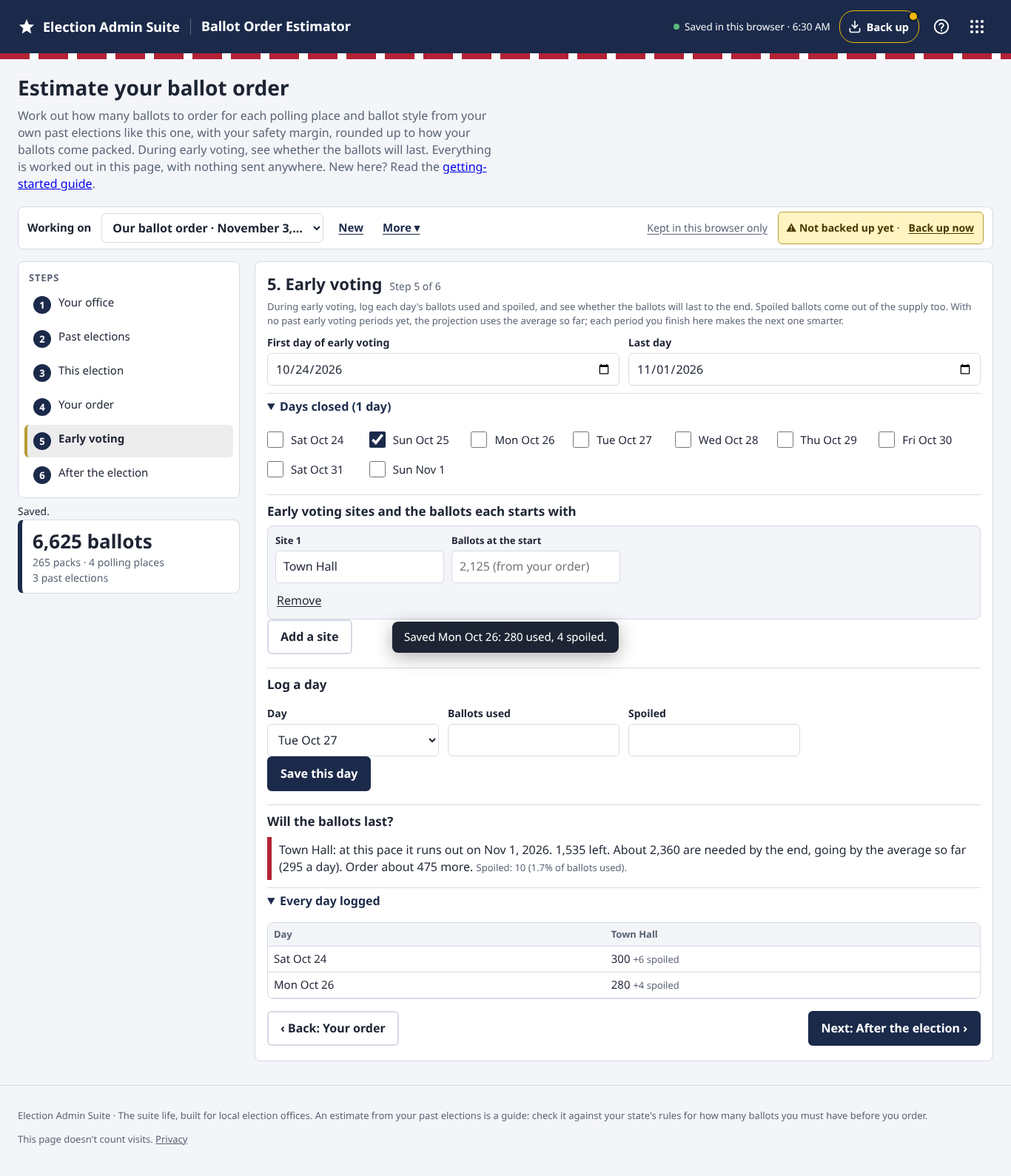
6. Early voting: will the ballots last?
- Pick the first and last days of early voting. Under Days closed, tick any day the sites are closed.
- Add an early voting site for each site, and type the ballots it starts with. A site named like a place on your order starts from that place's order, so you can leave its count empty.
- Each day, under Log a day, pick the site and the day and type the ballots used and the spoiled ballots, then Save this day. Spoiled ballots come out of the supply too.
Will the ballots last? gives each site (and all the sites together) one line: green when they should last, yellow when they should last but with less left at the end than your safety margin, and red when, at this pace, they run out before the last day, with the day they run out and about how many more to order. With no past early voting yet, the projection uses the average so far. Each early voting period you finish here is kept, so the next election's projection follows your own day-by-day pattern, such as the busy last weekend.
7. After the election
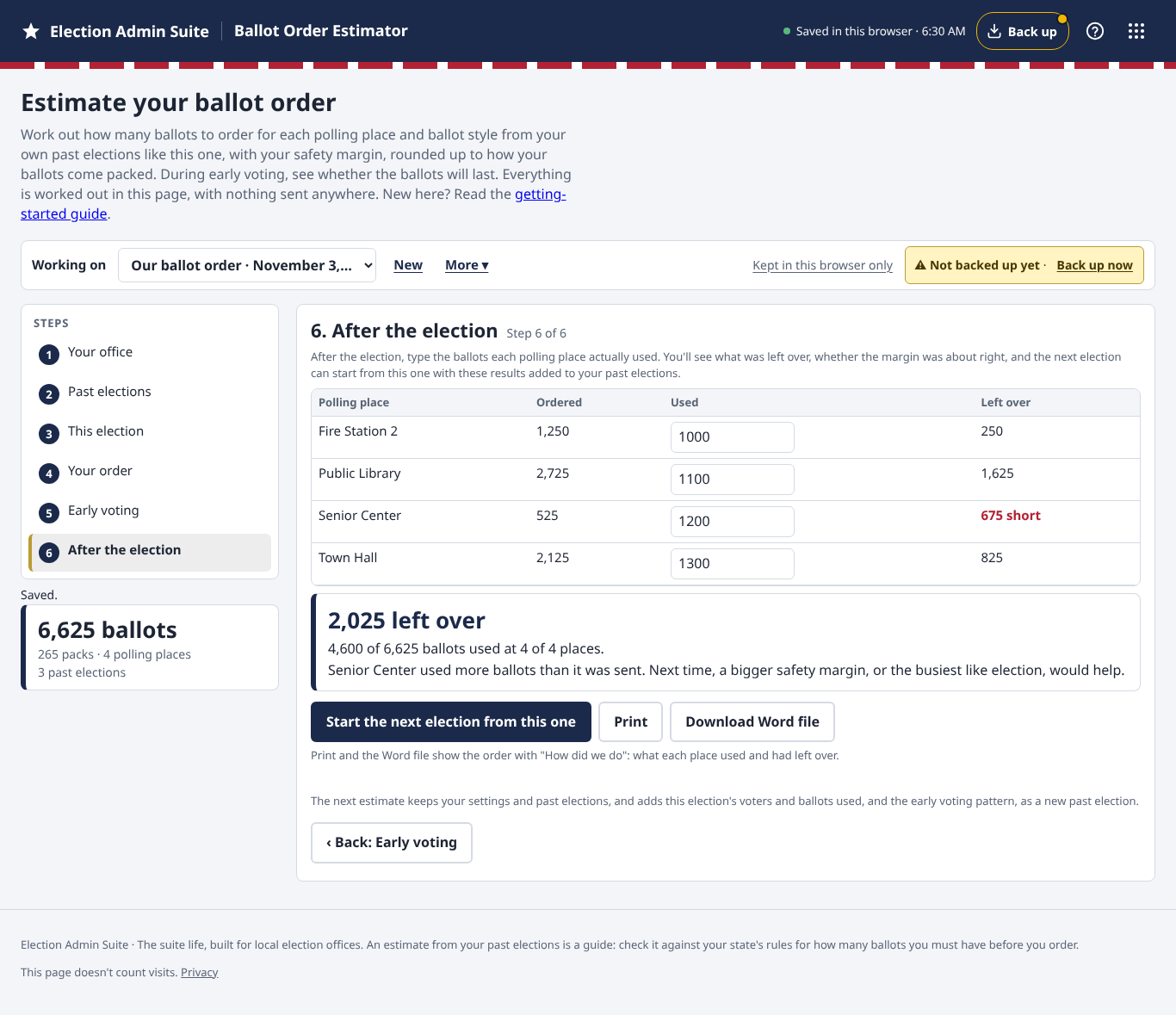
Type the ballots each place actually used. You see what was left over (or how many short), and whether your margin was about right. Print and the Word file then add How did we do to the order.
Start the next election from this one makes a new estimate with the same settings and past elections, adds this election's voters and ballots used as a new past election, and keeps the early voting pattern if the whole period was logged. Each election you finish makes the next estimate better.
8. Back up and restore
Where it is (from November 21, 2026). Press Back up at the top of the page, just before the ? Help button (on a phone it is the download icon on its own, and in a narrow window too, so the top of the page stays on one line; from November 22, 2026). The Back up and restore panel slides in from the right (on a phone, up from the bottom) with everything this section describes: Download a backup, Restore from a backup…, the Last backup line and Remove my work from this browser. It is the same panel in the same place in every suite tool. Close it with ×, Esc or a click outside it. The reminder: a dot on Back up shows when a backup is due, and the panel says why at the top, with a Back up now button. Signed in, the dot is yellow when your office's last backup is 7 days old or more, or there has never been one, and red after 30 days; the panel says when your office last backed up (it is the same on every computer). Not signed in, nothing shows until you have made something; then the dot comes on and the panel says Not backed up yet. or You’ve made changes since your last backup., with a note that your work is kept in this web browser only. Your browser doesn't ask Leave site? about it: your work is already saved in this browser, so reloading or closing the page loses nothing (from November 25, 2026; before, it asked). Nothing on the page moves when the dot comes on (from November 22, 2026; before, a line appeared at the top of the page). Signed in, the backup also holds your office's activity in this tool: who made, changed, deleted, published, backed up or restored what, and when (with your people's names and your office's time zone). The Backup Reader shows it as an Activity table you can filter by person; a restore never changes it (from November 25, 2026; Activity in your account).
You own your data, so keep your own copy. Download a backup (in the Back up panel) saves one .zip file with every saved estimate. Keep it somewhere safe, like your office's shared drive. The Backup Reader shows what's inside any backup file.
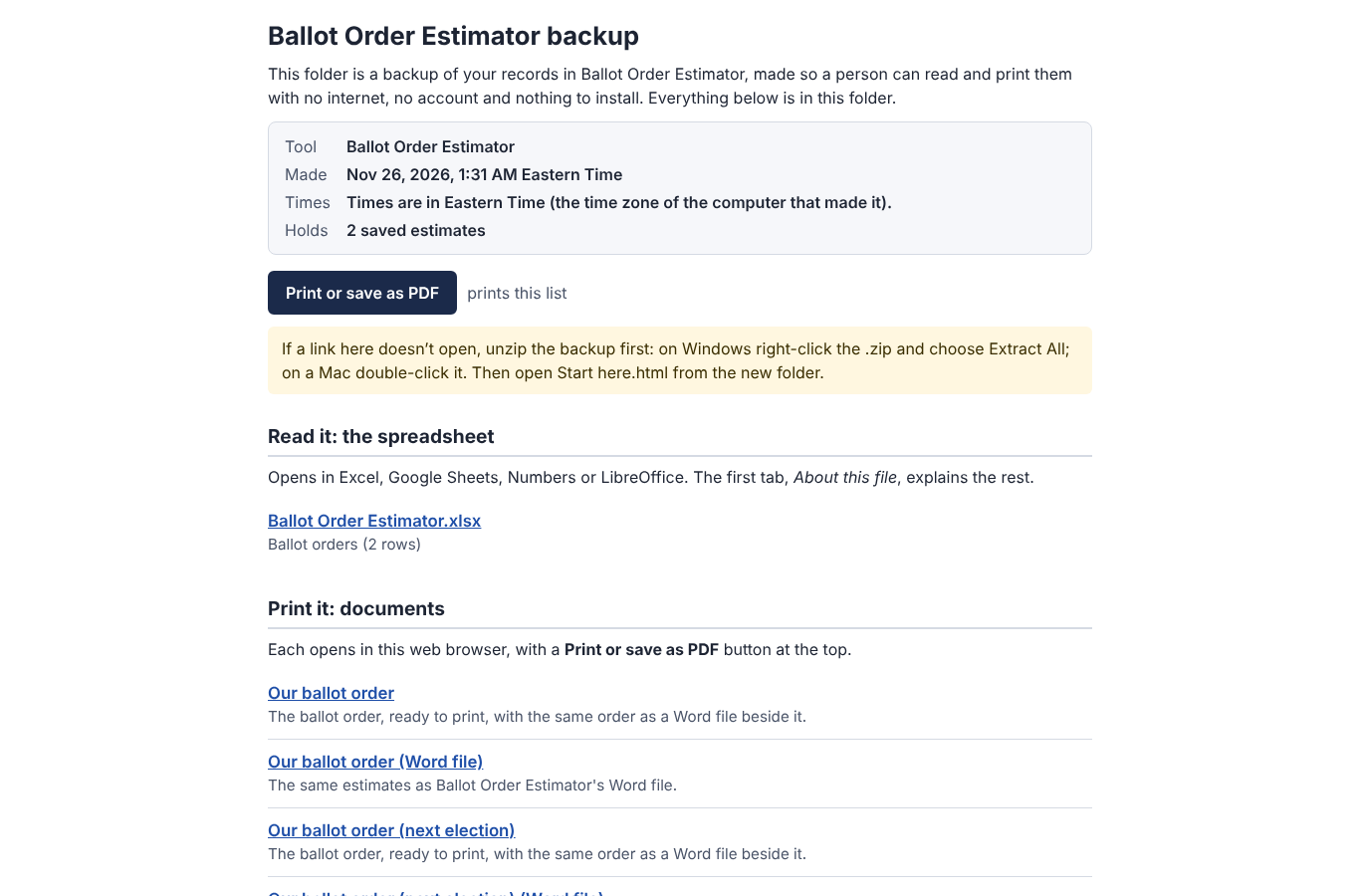
The backup is a folder you can open without the internet. Unzip it (Windows: right-click it, Extract All; Mac: double-click it) and double-click Start here.html. It opens in any web browser with no internet, no account and nothing to install, and lists:
- Documents/: each saved estimate's order as a print-ready page, and beside it the same order as the Word file Ballot Order Estimator makes.
- Spreadsheets/Ballot Order Estimator.xlsx: About this file first, then Ballot orders, a row per saved estimate: its name, office, election, kind of election, ballots to order, packs, how many past election rows, and who made and last changed it and when. Every other field is in the last columns, with grey headings starting For restoring:, so nothing is left out.
- Restore files/: the backup file Ballot Order Estimator reads to restore. Don't change it.
- The Last backup: line has no color for the first week, turns yellow once the last backup is 7 days old (or if there has never been one), and turns red after 30 days.
- Restore from a backup… loads a backup: the whole .zip you downloaded, a Back up everything file (Ballot Order Estimator finds its own file inside), or the .json file from a backup's Restore files folder. Before anything changes, a box asks Restore this backup?, with when the backup was made and how many estimates it has. Replace with the backup replaces every estimate with the backup's; Keep what’s here changes nothing. Download a backup of what’s here first, in the same box, saves a backup of what you have now before you choose (from November 23, 2026).
- A damaged file, or one that isn't a Ballot Order Estimator backup, is refused, and nothing changes.
- Remove my work from this browser, at the bottom of the backup box, clears what Ballot Order Estimator keeps in this web browser, for a shared or borrowed computer. It asks first and offers Download a backup first. Signed in, your office's saved work isn't touched.
If your office closes. For 30 days after an office is closed, everyone in it can still open Ballot Order Estimator and look, but nothing can be changed. Admins can still download a backup. After that, your office's saved estimates are deleted (how and when).
If you have View and print. An office can give someone the View and print role on the account's People tab (how). Signed in with it, you can open, print and download your office's estimates, but you can't add, change or delete anything, and the page says so.
9. Signing in (optional)
A free Election Admin Suite account saves your estimates for your office, so everyone in it can use them on any computer, and the nine-dot button switches between your suite tools. Press Sign in at the top right. A new estimate starts with your office's name, and This election can bring in your places from your office's Places list. If you made estimates in this browser before signing in, a box asks whether to copy them to your office; nothing moves unless you choose. Signed in, only Admins see the backup box, and a backup holds every estimate your office has saved.
10. Getting help
- The Help button is the question mark at the top right, beside the 9 dots: Contact us sends us a question by email, Suite status shows whether every tool is working, and What's new lists this tool's changes from the last 60 days. This guide is linked at the top of the tool's page.
- Ballot Order Estimator doesn't count visits.
- Your account, if you have one: the account guide.
Report a problem
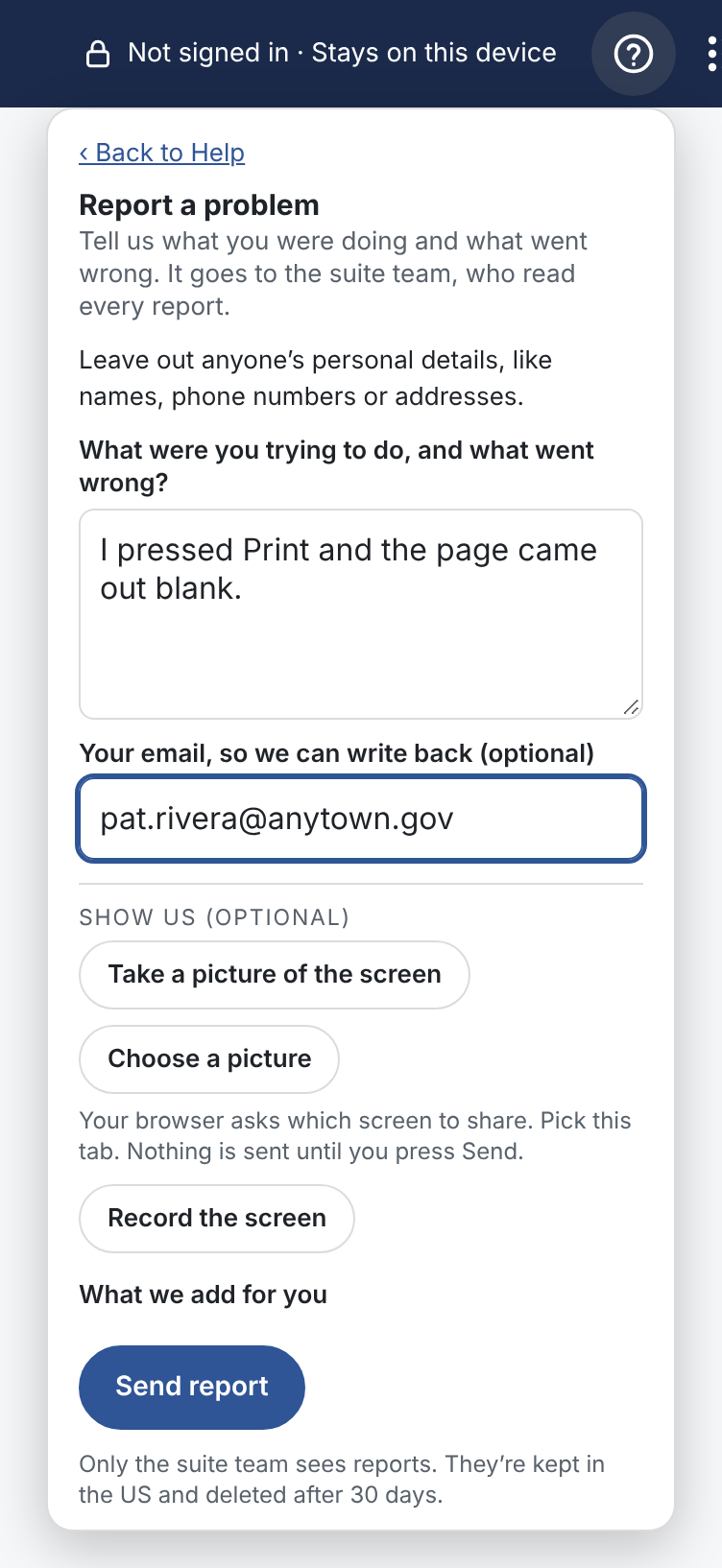
In Help, Report a problem tells the suite team about something that went wrong. Type what you were trying to do and what happened. The tool adds what we need to look into it, and What we add for you shows you the whole list before you send: the tool and its version, the page's address (without anything after ? or #), your browser and screen size, whether you're signed in and to which office, and any errors the page hit. You can also show us:
- Take a picture of the screen (on a computer). Your browser asks which screen to share: pick this tab. Then you see the picture. Circle marks the problem, and Blur hides anything you drag over. The marks are part of the picture we get; the unmarked picture is never sent. Use this picture adds it to your report.
- Choose a picture: a screenshot you already took. On an iPad, press the top button and volume up together, then choose it from Photos.
- Record the screen (Chrome, Edge, Firefox or Safari on a computer): what happens on this tab while you show us, up to 3 minutes, with no sound. A bar with Stop recording stays at the bottom of the page. You watch it before you send it, and Remove throws it away.
Nothing is sent until you press Send report. Only the suite team sees reports. They're kept in the US and deleted after 30 days. Signed in, we reply to the email you signed in with; signed out, add your email if you'd like an answer. If something on the page breaks, the page also tells the suite team on its own what broke (the error, the page and your browser), never what you typed.